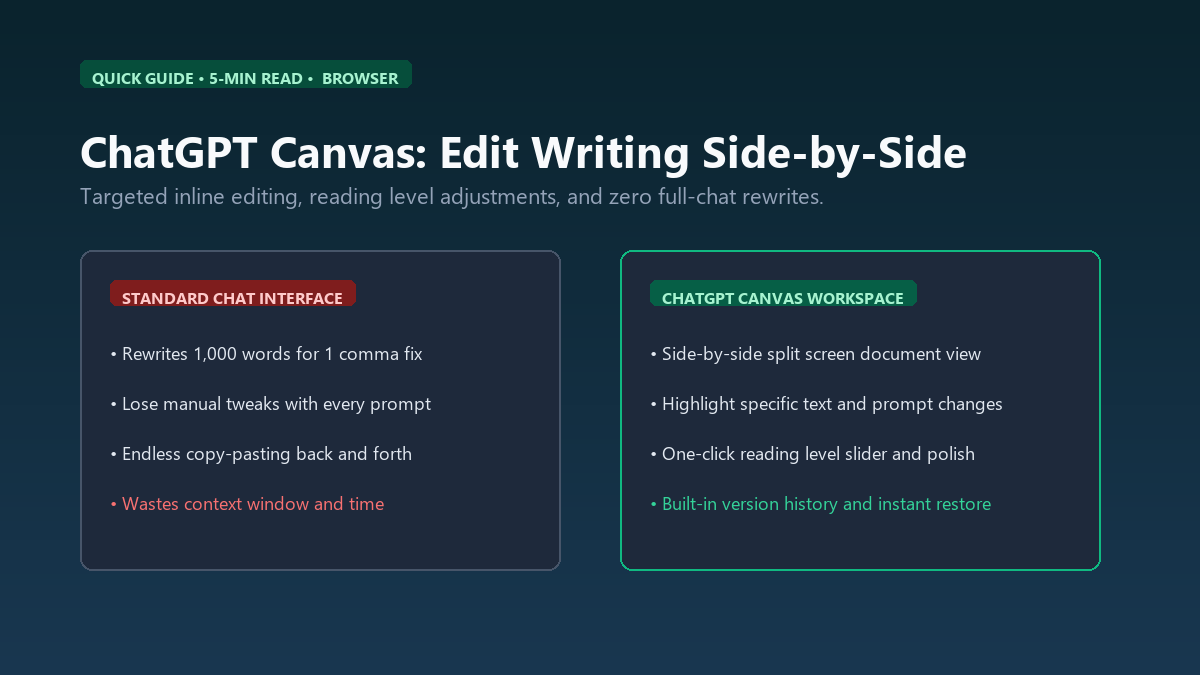
Canvas opens your writing alongside your chat window. Instead of regenerating entire 1,500-word articles for a single wording adjustment, you edit inline like a Google Doc.
What is ChatGPT Canvas?
Until recently, collaborating with ChatGPT on long documents felt like steering a ship with a toothpick. If you wrote a 1,000-word newsletter and asked ChatGPT to make paragraph three punchier, it reprinted all 1,000 words. Any manual edits you made in between were wiped out.
Canvas introduces a split-screen workspace. Your text document sits on the right, and the chat conversation sits on the left. The model understands line numbers, paragraph boundaries, and character highlights. You can type directly on the canvas yourself, or highlight two lines and tell the AI: "Make this sound less corporate."
The 3-Step Workflow Anyone Can Run in 60 Seconds
1. Open Canvas in Your Browser:
Navigate to chatgpt.com in Chrome, Edge, or Safari. In the prompt bar or model dropdown, select GPT-4o with Canvas (or type "open canvas" followed by your topic). A blank document pane slides open on the right side of your screen.
2. Highlight to Target Edits:
Paste your draft or let ChatGPT write an outline. Select any phrase or paragraph with your mouse. A circular prompt bubble appears immediately above your selection. Type your instruction, such as "Cut the fluff" or "Add a real-world metric". Only the highlighted sentence updates—the rest of your document stays untouched.
3. Use the Built-in Quick Slider Tools:
In the bottom right corner of the canvas window, click the pencil or tool icon. You get five instant zero-prompt buttons:
- Reading Level Slider: Toggle prose from Kindergarten up to Graduate School complexity.
- Adjust Length: Shorten or expand sections with a single click.
- Add Final Polish: Fix grammar, flow, and consistency without changing your original voice.
Where It Falls Short (The Honest Limits)
Canvas is designed for text and light code, not deep layout design. If you need complex data tables with mathematical formulas or nested callout badges, it occasionally misplaces markdown formatting during inline edits. Additionally, complex multi-chapter projects still run up against single-session context boundaries. For standalone blog posts, essays, and email sequences, however, it cuts editing time in half.