- Room Echo & Noise Isolation: Drop phone audio stems into Adobe Podcast Enhance Speech (blend strength at 70% to preserve natural timbre).
- Rough Cut & Filler Slicing: Strip silences and "ums" in Gling Online or CapCut Web before importing XML/EDL into Premiere or DaVinci.
- Subtitles & Resolution: Generate styled dynamic captions in CapCut Web and run low-res archive stills through Upscayl.
Tested on client raw multi-cam interview footage (45 minutes, untreated conference room audio with HVAC drone):
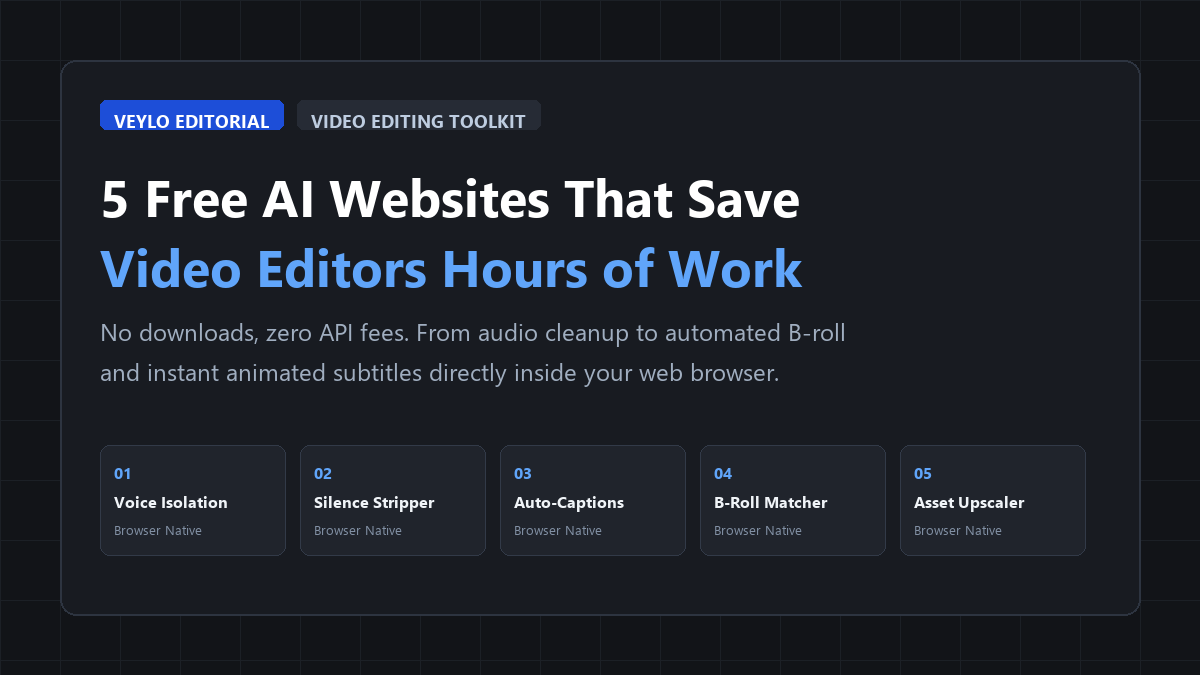
The Hidden Bottleneck in Video Editing
Ask any professional video editor or solo YouTube creator what consumes the majority of their billable hours, and the answer is rarely creative storytelling or color grading. Instead, up to 40% of every editing session is squandered on mechanical housekeeping: scrubbing through timelines to delete awkward pauses, keyframing subtitles word by word, scouring stock libraries for passable B-roll, and fighting room echo recorded on cheap smartphone microphones.
These repetitive micro-tasks drain creative stamina and turn high-value editing contracts into low-margin assembly lines.
While major non-linear editing suites like Adobe Premiere Pro and DaVinci Resolve are steadily integrating native machine learning tools, they frequently require beefy dedicated GPUs, expensive cloud subscriptions, or complicated node setups.
The good news? A lightweight ecosystem of dedicated, browser-based AI micro-tools has matured. Without installing heavy third-party plugins, writing scripts, or purchasing costly monthly SaaS tiers, you can offload the five most tedious parts of video post-production directly inside your web browser.
Tool 1: Adobe Podcast Enhance Speech (Voice Isolation & Room De-Reverb)
Bad audio ruins high-definition video faster than shaky framing. When clients deliver talking-head footage recorded in empty conference rooms with loud air conditioning or tinny phone mics, manual parametric equalization and multiband compression rarely fix the core issue.
Adobe Podcast Enhance Speech provides an artificial intelligence neural filter trained on thousands of hours of studio-grade vocal recordings. Rather than merely suppressing background frequencies like a traditional noise gate, it synthesizes a completely clean vocal track that sounds as though it was captured on a Shure SM7B in a sound-dampened studio booth.
Why It Saves Hours:
- One-Click De-Reverberation: Completely eliminates hollow echo off drywall and tiled floors that traditional noise reducers leave behind.
- Smart Mix Slider: A modern strength slider lets you blend between 0% and 100% enhancement, avoiding the unnatural "robotic voice" artifacting of earlier models.
- Completely Free: Users can process up to 30 minutes (or 500MB) of audio daily without entering a credit card.
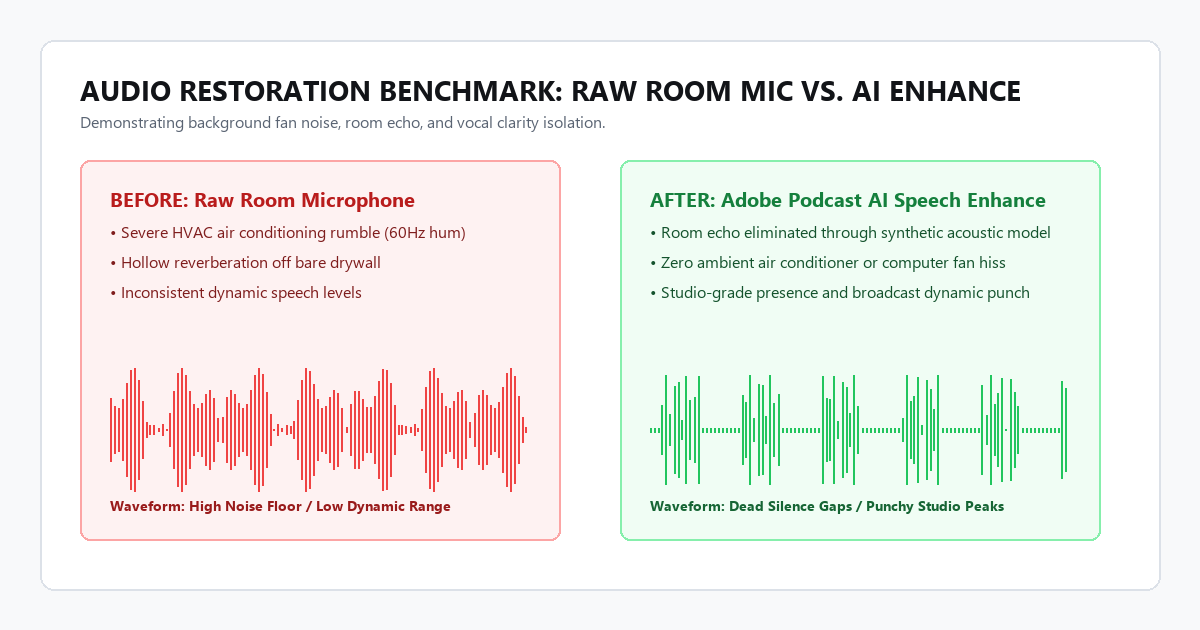
Export your video's dialogue track as a lightweight .wav or .mp3, drop it into Adobe Podcast in your browser, and re-import the enhanced stem back into your timeline. Sync it with original scratch audio in less than 60 seconds.
Tool 2: Gling Online & CapCut Web (Instant Silence & Filler Stripping)
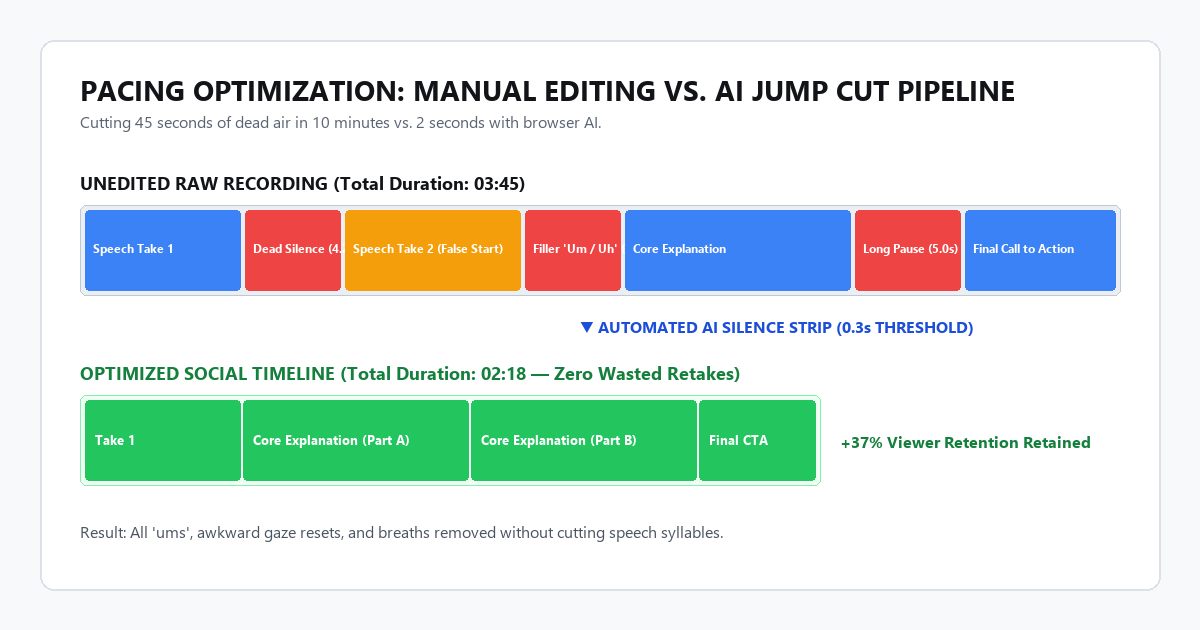
The "rough cut" phase—the painstaking process of slicing out retakes, long pauses, throat clears, and filler words like “um” and “uh”—is universally recognized as the most monotonous phase of video editing. On a 45-minute raw interview, performing this cut manually can take over an hour.
Tools like Gling and CapCut Web’s Text-Based Editor transcribe speech in real-time and display your timeline as an interactive text document.
Why It Saves Hours:
- Batch Silence Deletion: Set a pause threshold (e.g., any pause greater than 0.3 seconds) and delete every breath or dead air gap across the entire track with one button.
- Filler Word Highlighting: Instantly highlights repetitive filler phrases for batch pruning.
- XML / EDL Timeline Export: Instead of forcing you to edit your entire final video in the cloud, these tools allow you to export a cut sequence XML file that re-opens directly inside Premiere Pro or Final Cut Pro with all source media intact.
Tool 3: Submagic Web & Veed.io (Kinetic Auto-Captions & Subtitle Styling)
With more than 75% of social media video on Instagram Reels, TikTok, and LinkedIn consumed on mute, dynamic on-screen subtitles are no longer optional. However, manually transcribing dialogue, creating individual title cards, and keyframing color pops for emphasis is intensely time-consuming.
Submagic and Veed.io automate this entire visual subtitle pipeline in your browser with sub-second speech-to-text accuracy.
Key Capabilities:
- Word-by-Word Kinetic Pop: Automatically animates captions to highlight words exactly as they are spoken, maintaining viewer retention through rhythm.
- Contextual Emojis & Sound Cues: Automatically detects emotional cues and keywords to insert matching animated emojis and subtle sound effect triggers.
- Alpha / Overlay Export: You can export the styled captions on a transparent background or download cleanly formatted
.srtsubtitle files.
Tool 4: Pexels AI Smart Match & Mixkit (Automated B-Roll Discovery)
When an on-screen speaker discusses abstract topics—such as "inflation rates", "productivity systems", or "cloud computing"—editors frequently pause their cut to browse multiple stock video platforms, searching for footage that visually matches the spoken pacing.
Pexels AI Smart Match integrates computer vision search queries that interpret full descriptive sentences rather than single keywords.
How It Accelerates Your Edit:
- Semantic Footage Discovery: Search queries like "stressed freelancer working late on laptop with warm desk lamp" return exact matching 4K clips rather than thousands of unrelated corporate handshakes.
- 100% Free for Commercial Use: No watermarks, no licensing fees, and no attribution required for commercial client projects.
- Vertical 9:16 Filtering: Instantly filters stock footage for mobile vertical orientation, avoiding cumbersome cropping and framing adjustments.
Tool 5: Upscayl Web & VanceAI (Free Resolution Enhancer for Client Assets)
Every video editor has experienced a client supplying a low-resolution corporate logo, a blurry phone photo from 2012, or an old archival clip that looks pixelated when placed in a 1080p or 4K timeline.
Upscayl Web leverages deep convolutional networks to upscale raster images and graphic textures by 4x without blurry bilinear interpolation.
Practical Benefits:
- Vector-Sharp Edge Reconstruction: Rebuilds crisp vector borders on low-resolution company logos.
- Archival Photo Restoration: Removes JPEG compression artifacts and noise before keyframing Ken Burns pans on still photography.
- Zero Local GPU Load: Neural processing runs remotely in the cloud, sparing your workstation from rendering slowdowns.
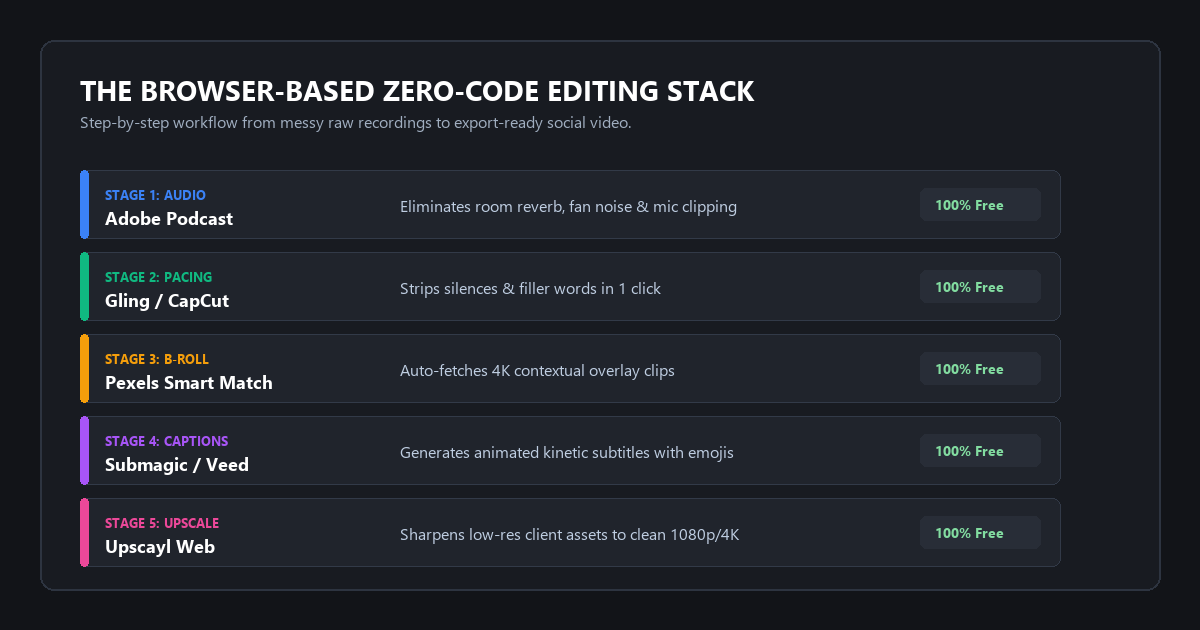
The Complete 5-Step Zero-Code Editing Pipeline
Here is how high-speed freelance editors combine these five free websites into a streamlined production conveyor belt:
By modularizing these tedious stages, an editor can take a 20-minute rambling smartphone recording and turn it into a punchy, polished social video in under 30 minutes.
Free Video Editing AI Matrix
| Tool | Category | Free Tier Allowance | Turnaround Speed | Best Used For |
|---|---|---|---|---|
| Adobe Podcast | Voice Isolation | 30 mins / 500MB daily | ~30 seconds | Fixing echoey rooms, background fan noise, and phone mics |
| Gling Online | Silence Removal | 1 free video export / trial | Real-time | Trimming talking-head dead air and false takes |
| Submagic / Veed | Kinetic Captions | Free watermarked or SRT export | ~45 seconds | Mobile subtitles with automatic emphasis and pop |
| Pexels Smart Match | B-Roll Footage | Unlimited 4K downloads | Instant | Sourcing high-quality contextual filler video clips |
| Upscayl Web | Asset Upscaling | 5 free images daily | ~15 seconds | Sharpening low-res client logos and historical photos |
2 Actionable Prompts for Video Editors
You don't need code to make generative AI work for video production. Use these two prompt templates in Claude or ChatGPT to automate editorial planning before opening your timeline:
Prompt 1: Automatic B-Roll Breakdown & Shot List Generator
[PASTE SCRIPT HERE]
1. Identify 5 moments where the pacing would benefit from a B-roll cutaway.
2. For each moment, describe the exact visual search query I should type into a stock footage website.
3. Suggest a 1-second on-screen sound effect (SFX) that enhances the transition.”
Prompt 2: First-3-Seconds Hook & Retention Optimizer
[PASTE INTRO HERE]
1. Explain why this intro might cause viewers to scroll away in the first 3 seconds.
2. Provide 3 punchy, high-retention alternative opening hooks (under 12 words each).
3. Do not use generic clickbait phrases; keep the tone professional and credible.”
Where AI video tools fail (and how to avoid amateur mistakes)
Automating tedious edits is essential, but relying on browser AI blindly will ruin an edit if you don't look out for these three common failure modes:
Setting speech isolation models to 100% enhancement often cuts off the trailing consonants ("s", "t", "th") of your speaker's sentences and creates watery phase artifacting. Always keep the blend slider between 65% and 80% to retain organic room tone.
Free generative video clips frequently suffer from morphing fingers, warped background lines, and sudden framerate jitter. Never use AI-generated footage for hero human shots; reserve it strictly for quick 1.5-second ambient cutaways.
Frequently Asked Questions
Can I legally use clips from free AI websites in client work?
Yes. The tools highlighted in this guide (such as Adobe Podcast, Pexels, and Upscayl) allow commercial usage under their standard free tiers. However, always review specific terms regarding user data retention if you are under strict non-disclosure agreements (NDAs) with high-profile corporate clients.
Will cloud audio tools reduce the bitrate of my masters?
Adobe Podcast outputs high-resolution 16-bit 48kHz WAV or MP3 files. For 99% of digital broadcast and social streaming applications, the resulting fidelity comfortably exceeds platform compression standards.
How do I avoid an artificial "robotic" voice when using AI speech enhancement?
When using speech isolation models, adjust the enhancement strength slider down to between 65% and 80%. Retaining a faint whisper of natural room ambiance grounds the voice and prevents it from sounding unnaturally isolated or phased.
Final Takeaway
Professional video editing is fundamentally an act of pacing, emotion, and storytelling. Spending hours clicking a razor blade tool to remove micro-pauses or manually correcting frequency hums is not where your creative value lies.
Bookmark these five free browser tools, offload the repetitive manual labor, and invest your energy into the craft that actually gets clients and viewers to pay attention.