
If you have ever collaborated on a research paper in Google Docs, you know the citation nightmare. One co-author inserts a footnote in APA format. Another pastes a bracketed number from Word. Before long, your bibliography is a fragmented mess of broken italics and duplicate entries that takes an entire weekend to untangle.
Traditional desktop reference managers like Zotero and Mendeley were designed for single-user offline word processors. When used inside collaborative Google Docs, their desktop plugins frequently lag, demand separate local installations from every collaborator, and fail to sync attached PDFs smoothly.
That is why paperpile (paperpile.com) has become the gold standard for browser-based scientific writing. It is a cloud-first reference manager engineered specifically for Google Docs, Google Scholar, and Chromium browsers.
What Is Paperpile and What Can It Do for You?
Instead of running heavy desktop background daemons, Paperpile lives directly inside your browser and Google Drive:
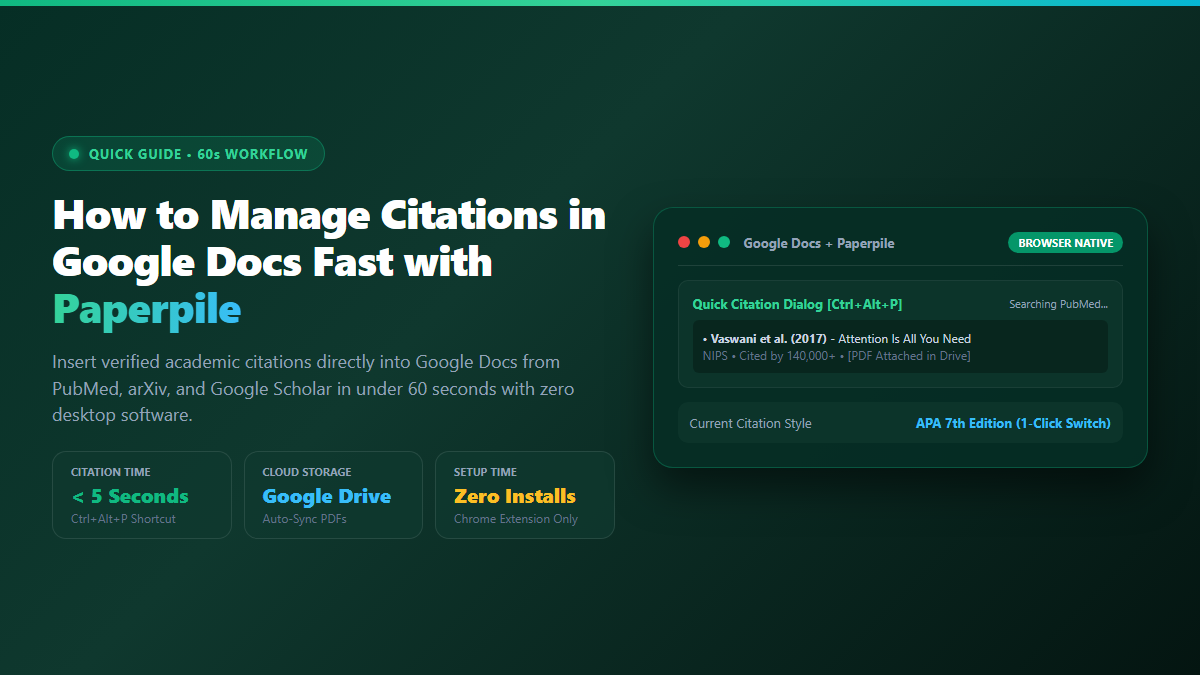
- Instant Keyboard Citation [Ctrl+Alt+P]: Press one shortcut inside any Google Doc to open a search modal that queries your personal library, PubMed, and arXiv in real time.
- Frictionless Co-Author Sync: Anyone with edit access to your Google Doc can view and format citations—even if they haven't saved the paper in their own account.
- Automated Google Drive PDF Storage: Full-text open-access PDFs are automatically fetched and organized into a clean folder hierarchy in your Google Drive.
- 1-Click Citation Style Switching: Instantly reformat 100+ citations from APA 7th to IEEE, Nature, or Chicago format in 10 seconds.
The 60-Second Browser Workflow to Cite Directly in Google Docs
- Step 1: Install the Paperpile Chrome Extension: Add the official extension from the Chrome Web Store. It connects automatically to your Google account with zero desktop software installs.
- Step 2: Collect Papers in 1 Click: While browsing Google Scholar, PubMed, or preprint servers, click the small Paperpile icon next to any paper to save the metadata and PDF directly to your Drive.
- Step 3: Press Ctrl+Alt+P in Your Document: In your Google Doc, place your cursor where you need a citation and press
Ctrl+Alt+P(orCmd+Option+Pon Mac). Type the author's name or keyword, select the paper, and press Enter. - Step 4: Format Your Bibliography: Click Paperpile → Format citations in the Google Docs top menu. Paperpile automatically numbers citations sequentially and generates a compliant bibliography at the end of your document.
Use Paperpile for: Live collaborative writing in Google Docs. Zero synchronization conflicts between co-authors, and PDFs stay organized in Google Drive.
Use Local Zotero for: Complex offline Markdown vaults and local LaTeX bibtex generation. Check our guide on powering academic research with Zotero plugins.
By shifting citation management into the cloud with Paperpile, you eliminate manual copy-pasting and preserve collaborative momentum with your research team.