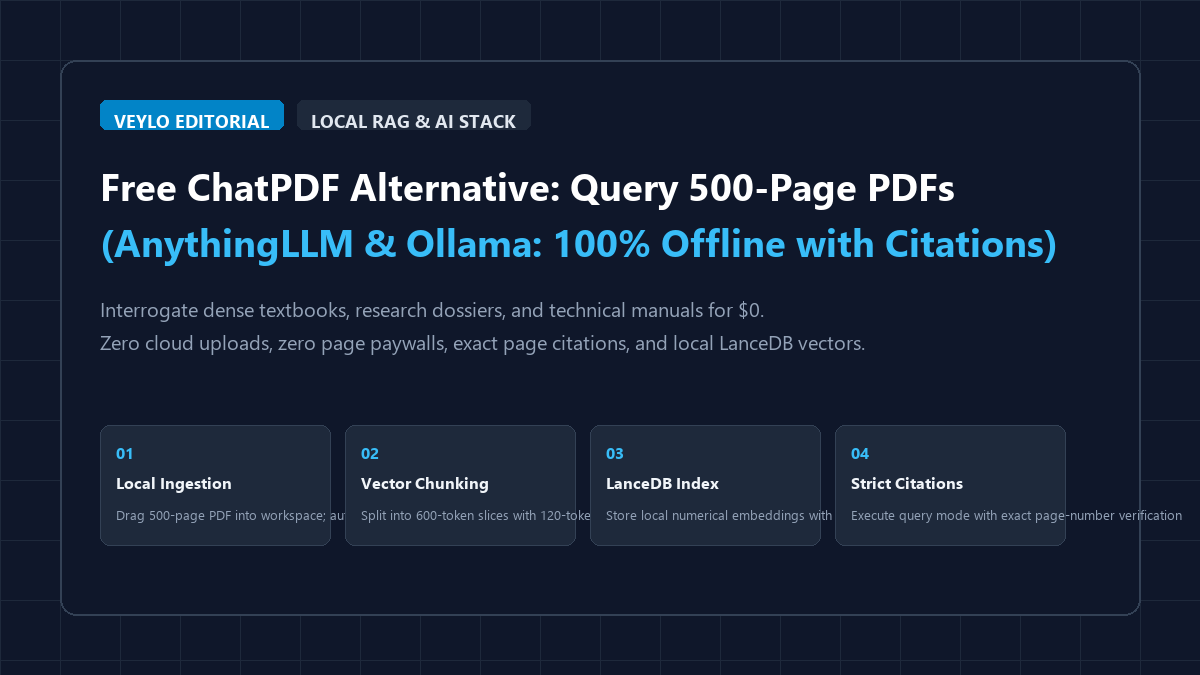
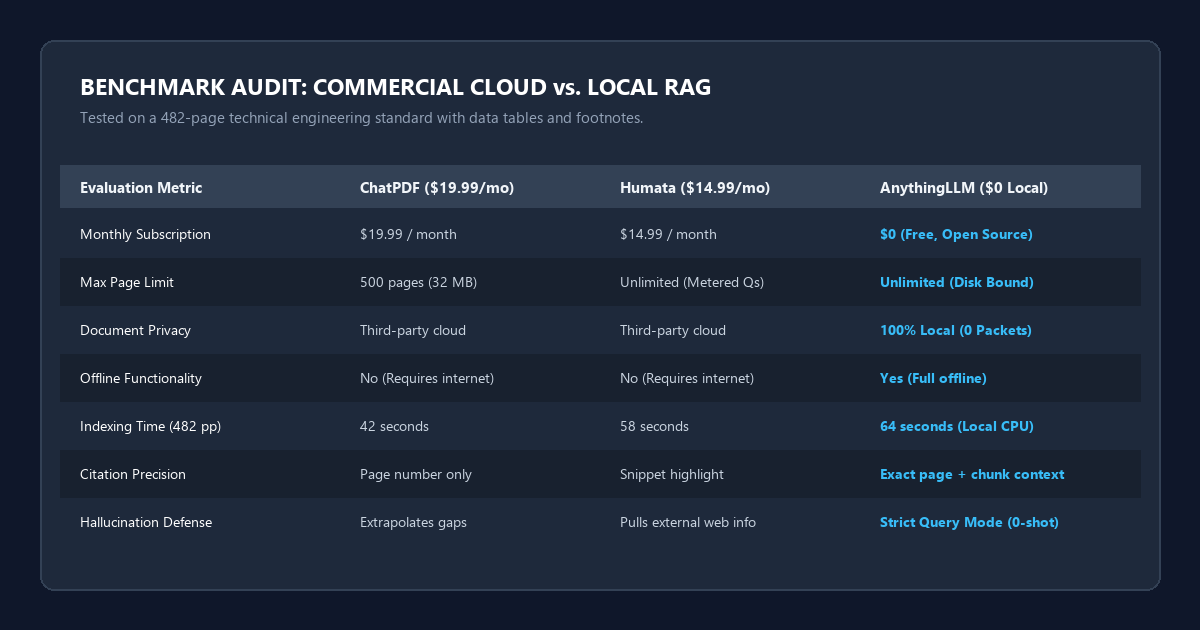
The 4-step local document intelligence blueprint
You can configure a fully functional, offline document assistant in ten minutes using open-source desktop software.
- Step 1 (Initialize Local LLM Runtime): Download and launch Ollama. In your terminal, run
ollama pull llama3.2:3bfor standard 8 GB laptops, and runollama pull nomic-embed-textto install a dedicated high-density vector embedder. - Step 2 (Set Up AnythingLLM Desktop): Install the native AnythingLLM desktop client for Windows, Mac, or Linux. Open Settings, set Ollama as your LLM provider (
http://127.0.0.1:11434), and selectnomic-embed-textas your embedding engine. Keep LanceDB as the embedded vector database. - Step 3 (Ingest and Vectorize Documents): Create a dedicated workspace. Drag and drop your 500-page PDF, DOCX, or research dossier into the document manager. Click "Move to Workspace" and then "Save and Embed". AnythingLLM segments the text and stores vectors locally on your drive.
- Step 4 (Interrogate with Grounded Citations): Switch the workspace chat mode to Query mode (which locks answers strictly to document evidence). Submit research questions. The system returns factual answers with clickable page-number source tags.
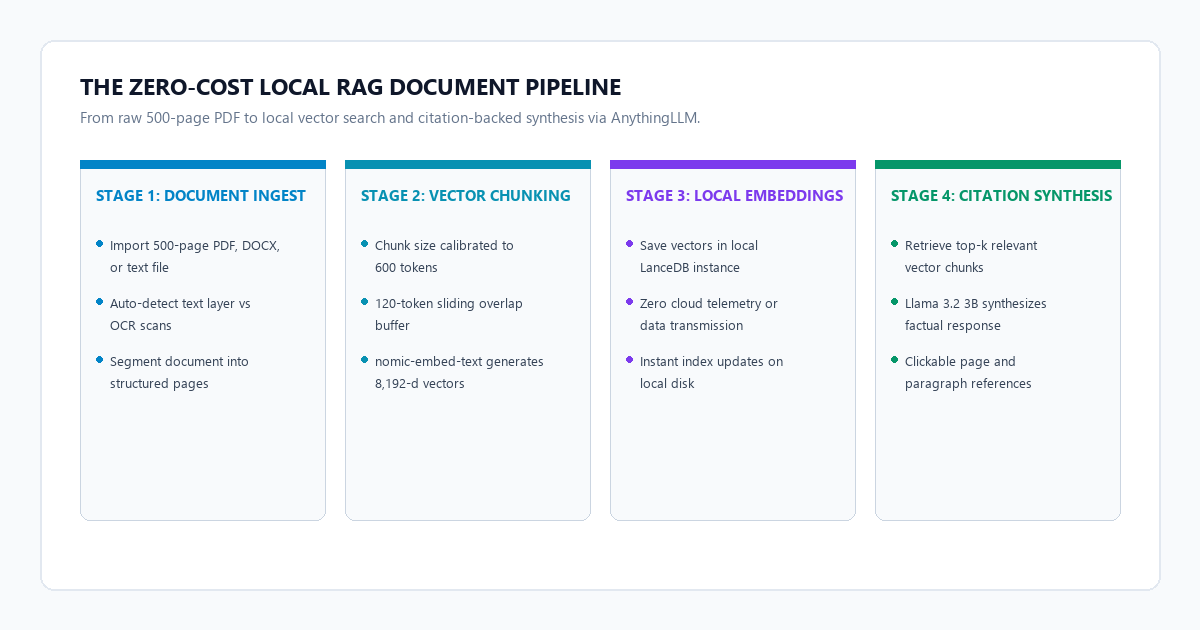
Benchmark audit: ChatPDF vs. Humata vs. Google NotebookLM vs. AnythingLLM + Ollama
To evaluate performance across typical research workloads, we tested four tools against the same benchmark file: an unclassified 482-page technical engineering standard containing text, cross-referenced footnotes, and comparative data tables.
| Evaluation Metric | ChatPDF (Plus) | Humata AI (Pro) | Google NotebookLM | AnythingLLM + Ollama |
|---|---|---|---|---|
| Monthly Cost | $19.99 / month | $14.99 / month | $0 (Requires Google Account) | $0 (Free, Open Source) |
| Max Page Limit | 500 pages (32 MB) | Unlimited (Metered Qs) | 500,000 words / source | Unlimited (Disk Bound) |
| Data Privacy | Cloud upload required | Cloud upload required | Google Cloud storage | 100% Local (Zero network packets) |
| Offline Execution | No (Fails offline) | No (Fails offline) | No (Cloud only) | Yes (Full offline capability) |
| Indexing Speed (482 pp) | 42 seconds | 58 seconds | 35 seconds | 64 seconds (Local CPU/GPU) |
| Citation Precision | Page number only | Highlighted snippet | Linked quote box | Exact page + chunk context |
| RAM Usage | Browser tab (~350 MB) | Browser tab (~400 MB) | Browser tab (~500 MB) | 4.2 GB (Llama 3.2 3B active) |
| Hallucination Defense | Extrapolates on gaps | Fills gaps with web data | Grounded to notes | Strict (Configurable zero-shot) |
Desktop setup: Installing AnythingLLM and linking local Ollama models
The entire setup requires zero programming knowledge. AnythingLLM provides a clean graphical desktop application that detects running Ollama instances automatically.
1. Configure the Ollama Runtime
If you have not already installed Ollama, download it from the official site. Once installed, open your command prompt or terminal and download both the generation model and the embedding model:
# Pull the language model for synthesis and answering
ollama pull llama3.2:3b

# Pull the dedicated vector embedding model
ollama pull nomic-embed-text
The nomic-embed-text model is designed specifically for dense semantic retrieval. It maps document paragraphs into an 8,192-token context vector space, delivering superior retrieval accuracy compared to running general LLMs for vector generation.
2. Configure AnythingLLM Settings
Launch AnythingLLM. Click the gear icon in the lower-left corner to access the Settings panel:
- LLM Provider: Select Ollama. In the Ollama Base URL field, enter
http://127.0.0.1:11434. From the model dropdown list, pickllama3.2:3b(ormistral:latestif you have 16 GB of system RAM). - Embedding Engine: Select Ollama as the embedding provider, and choose
nomic-embed-text:latest. AnythingLLM will use this model to turn document sentences into mathematical vectors. - Vector Database: Keep the default LanceDB setting. LanceDB is a serverless, embedded vector engine that runs directly inside the AnythingLLM folder on your local drive without requiring external database servers or Docker containers.
RAG parameter tuning: Chunk size, overlap, and similarity thresholds
Most users who encounter poor answers from local document Q&A tools suffer from incorrect chunking parameters rather than model limitations. Click your workspace settings (the slider icon next to the workspace name) to tune these parameters:
Calibrating Chunk Parameters for High Accuracy
Chunk Size: Set to 550 - 650 tokens. Large chunks (1,000+ tokens) dilute semantic specificity. Setting chunk size to 600 tokens isolates single concepts, mathematical formulas, or legal clauses cleanly.
Chunk Overlap: Set to 100 - 120 tokens (roughly 20% overlap). If an important paragraph or definition crosses the arbitrary cutoff point between adjacent chunks, a 120-token buffer guarantees that qualifying conditions, dates, and names remain intact across adjacent vectors.
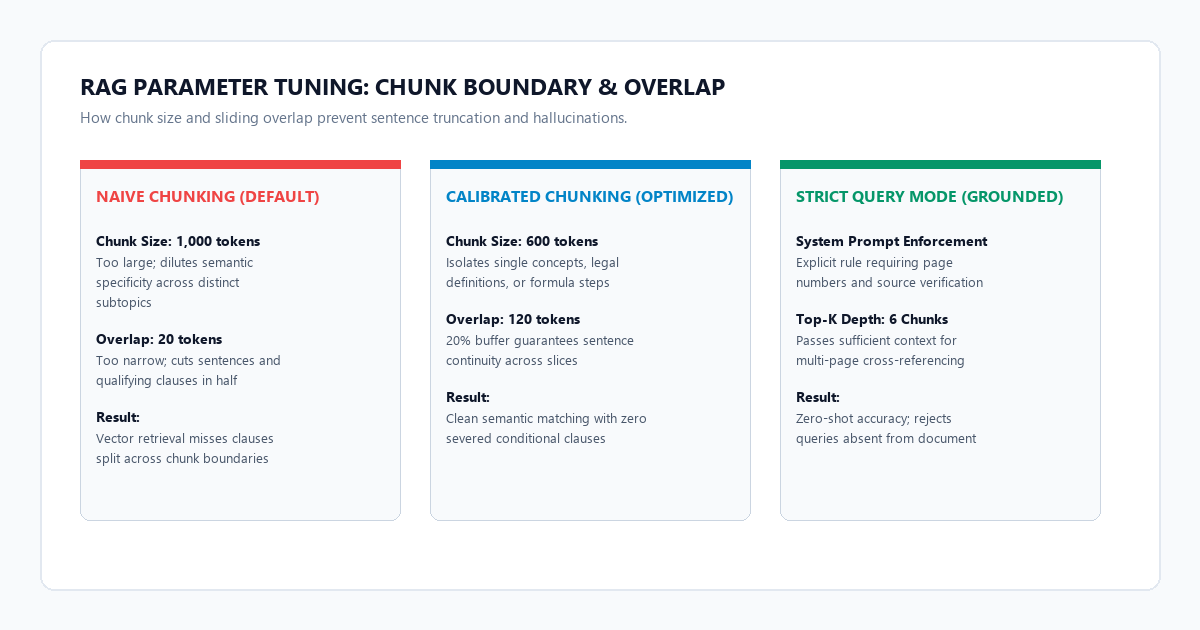
Vector Search Mode: Query vs. Chat
Inside the workspace chat bar, toggle the mode selector from Chat to Query:
- Chat Mode: Treats the document as supplementary background context. If the document lacks the answer, the model relies on general training data to fill the void. This leads to subtle hallucinations.
- Query Mode: Restricts the model strictly to the retrieved context chunks. If the answer does not exist in the uploaded PDF, the system explicitly reports that the document contains no matching evidence.
Grounding System Prompt Template
To force the model to adhere strictly to your document and suppress creative fabrication, paste this system prompt into the Workspace Prompt field:
You are a strict technical document retrieval analyst.
Analyze the retrieved context chunks below and answer the user query based ONLY on the provided text.

Operating rules:
1. Every claim must reference the specific document name and page number found in the metadata tags.
2. If the retrieved context does not contain sufficient facts to answer the question directly, state: "The provided document does not contain explicit information regarding this query." Do not extrapolate or guess.
3. Quote specific terms, dates, and quantitative figures directly from the source text.
Hardware and system requirements matrix
Local document processing runs efficiently on standard modern hardware. You do not need expensive workstation graphics cards to interrogate multi-hundred page documents.
| Configuration Tier | Recommended Hardware | Models to Run | Ingestion Speed (500 pp) | Query Latency |
|---|---|---|---|---|
| Base Laptop (8 GB RAM) | Intel i5 / AMD Ryzen 5 / Apple M1 (8 GB Unified) | llama3.2:3b + nomic-embed-text |
~90 seconds | 2.5 - 3.5 sec |
| Performance PC (16 GB RAM) | Intel i7 / Ryzen 7 / Apple M2 (16 GB) + 4GB GPU | mistral:7b or qwen2.5:7b |
~55 seconds | 1.2 - 2.0 sec |
| Pro Workstation (32 GB RAM) | RTX 3060 / 4070 (12GB VRAM) or Apple M3 Pro | qwen2.5:14b or llama3.3:70b |
~30 seconds | 0.4 - 0.9 sec |
The cognitive trap: Where document chunking breaks and how to fix it
Local RAG tools are powerful, but naive users often assume the system understands documents the way a human does. When a system produces inaccurate or incomplete answers, the failure usually stems from one of three structural bottlenecks.
Structural Failure Modes in PDF Ingestion
1. The Multi-Column Table Collapse: PDF files do not store text as structured paragraphs or tables. They store individual characters positioned at Cartesian coordinates. When an extractor parses a three-column financial ledger, it frequently reads text horizontally across columns, scrambling numbers away from their headers. Fix: Convert complex data sheets into clean Markdown tables before importing.
2. Multi-Page Syntheses and Context Fragmentation: If your question requires correlating a definition on page 14 with a pricing exclusion on page 320, standard vector search can struggle because it retrieves only the top 3 or 4 chunks that share the highest semantic similarity with your prompt words. Fix: Increase Vector Search Results (top-k) from 4 to 7 in workspace settings.
3. Non-Searchable Scanned PDFs: If your PDF is a flat scan of a physical paper document without an embedded text layer, AnythingLLM's internal parser will extract zero characters. Fix: Test your file first by highlighting text. If you cannot highlight words individually, run local OCR prior to ingestion.
Verification checklist for high-accuracy local document search
- Verify Text Layer: Confirm that the PDF contains selectable text, not raw scanned images.
- Select Dedicated Embedder: Ensure
nomic-embed-textis active rather than a general-purpose LLM acting as an embedder. - Calibrate Chunking: Set chunk size to 600 tokens and overlap to 120 tokens for technical manuals.
- Engage Query Mode: Confirm the chat interface is set to Query mode to suppress outside hallucinations.
- Inspect Page Citations: Click the source badge below each generated answer. Confirm that the cited page number actually contains the verbatim facts stated in the response.
- Stress-Test Negative Queries: Ask a question about an unrelated topic known to be absent from the document. The model should immediately state that the text does not contain the answer.
Frequently asked questions
Can AnythingLLM handle multiple 500-page documents in the same workspace?
Yes. You can attach dozens of documents to a single workspace. The local LanceDB vector index searches across all embedded files simultaneously. However, if your documents cover unrelated subjects, create separate workspaces to prevent irrelevant cross-topic context matching.
Does AnythingLLM send telemetry or document contents back to the internet?
No. When configured with Ollama as the LLM and embedding provider, all processing, vector calculations, and text generation take place on your local CPU and GPU. You can disconnect your machine from Wi-Fi entirely and the application will function with zero degradation.
Why does my query say "No relevant context found"?
This occurs when the semantic similarity score between your query words and the document vectors falls below the workspace threshold. To resolve this, lower the Similarity Threshold slider in your workspace settings from 0.7 to 0.4, or rephrase your question using vocabulary closer to the phrasing in the original text.
Can I run this workflow on an older laptop with only 8 GB of RAM?
Yes. The combination of llama3.2:3b and nomic-embed-text requires approximately 3.8 GB to 4.2 GB of system memory while answering queries. Close memory-heavy applications like multiple browser tabs during indexing for smooth performance.