Waiting ten seconds for a bloated commercial chatbot to trickle out one simple paragraph breaks your working momentum. When you are editing documentation, writing outreach emails, or comparing technical specs, slow generation speeds force you to sit and watch characters render one by one.
Worse, most free chatbot tiers gate their best features—like cited web lookups, document analysis, and interactive canvas editors—behind twenty-dollar monthly paywalls or aggressive usage caps that kick in just as you get into flow.
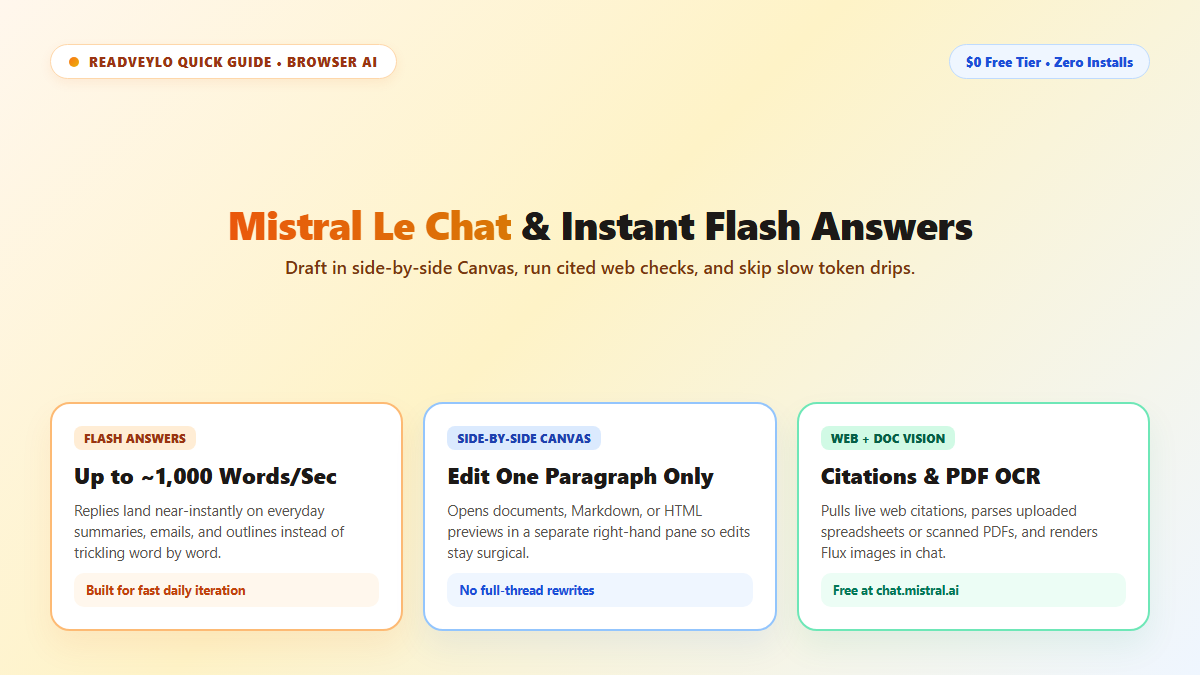
Mistral Le Chat solves that friction right inside your browser. With its blazing ~1,000 word-per-second Flash Answers, built-in search citations, and side-by-side Canvas workspace, it has become my go-to free daily assistant for high-velocity writing and drafting.
What Mistral Le Chat Does Differently on the Free Tier
Most free browser assistants lock fast generation or document editing behind monthly upgrades. Le Chat packs four practical tools into its free browser workspace, similar in spirit to our ChatGPT Canvas editing guide and model-speed comparison.
- Flash Answers: Generates summaries, emails, and outlines at up to ~1,000 words per second.
- Side-by-Side Canvas: Opens drafts in a separate right-hand pane so you can edit individual paragraphs cleanly.
- Web Search with Citations: Pulls recent facts and news links instead of relying only on older training data.
- Document OCR & Image Tools: Reads uploaded PDFs or spreadsheets and generates Flux images inside chat.
Three Steps to Draft Faster in Canvas
- Open chat.mistral.ai: Sign into a free account inside any desktop or mobile browser with zero software installs.
- Ask for a Canvas draft: Request a project memo, email reply, or Markdown outline and toggle the Canvas workspace so the text opens beside your chat thread.
- Edit one paragraph at a time: Highlight a single stiff sentence inside Canvas, ask Le Chat to shorten or clarify just that block, and copy the clean output straight into your email or doc. For longer public research reports, compare it with our Gemini Deep Research guide.
Where Free Access Slows Down
- Rolling rate ceilings: Heavy daily image runs, large file OCR uploads, and long extended-thinking sessions hit free caps sooner than casual chat queries.
- Speed trades off on hard logic: Ultra-fast Flash Answers shine on summarizing and drafting, whereas multi-step math or dense academic synthesis still deserves slower verification.
- Check cited web links: Always click inline web references before quoting stats or pricing in published work.