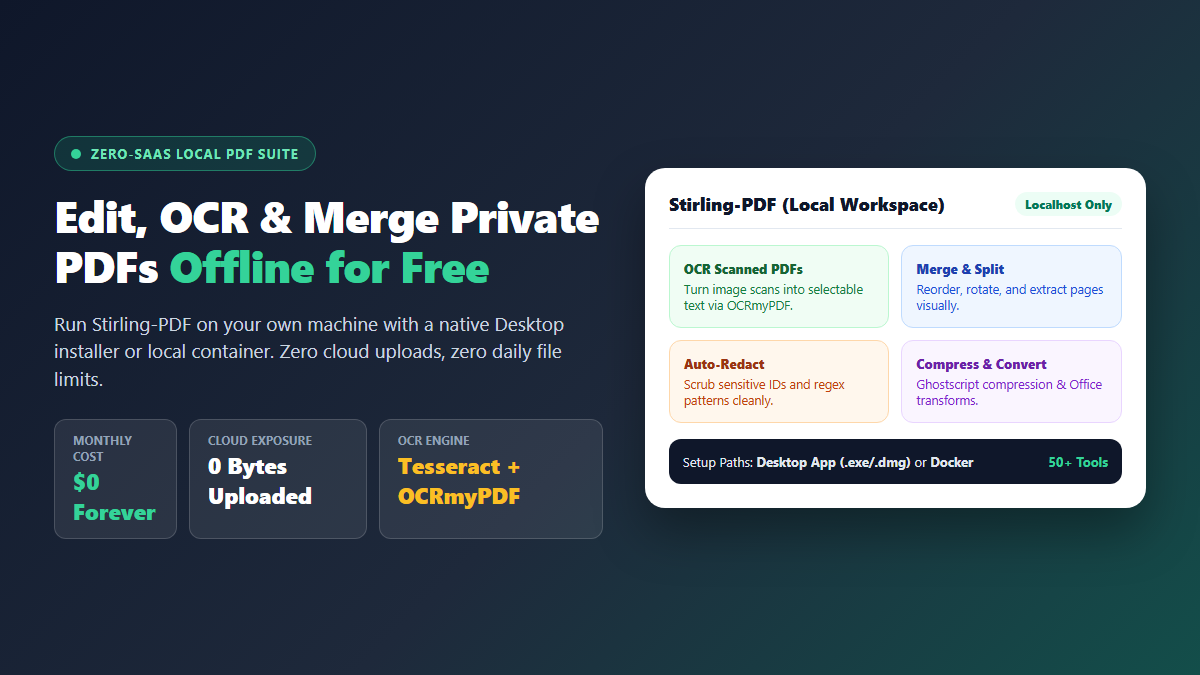
- Zero Network Uploads: Scanned tax returns, contracts, and study manuscripts never touch third-party cloud queues.
- Zero Terminal Option: Official desktop installers for Windows, macOS, and Linux launch just like standard software without touching Docker.
- Real Open-Source OCR: Powered by OCRmyPDF and Tesseract under the hood, supporting 100+ downloadable language packs.
- Next Step Pairings: Once text becomes selectable, pull structured spreadsheets using our PDF-to-Excel extraction method or query files privately via AnythingLLM and Ollama.
I used to stare at the $24 monthly charge on my credit card for Adobe Acrobat Pro and wonder why dealing with basic document formats still feels like highway robbery. When all you need to do is OCR a scanned bank statement, redact private client IDs, or merge three contracts, paying enterprise SaaS fees is irrational.
The alternative—uploading private legal paperwork or tax returns to free commercial browser converters—is a privacy nightmare. You have zero guarantee where those unencrypted files end up or what server logs retain your personal data.
Stirling PDF solves both sides of the dilemma. It packages over fifty powerful PDF utilities, including battle-tested Tesseract OCR, into a self-hosted local workspace that runs directly on your own hardware with zero cloud exposure and zero subscription fees.
Here is the fast reality check: the core open-source edition costs $0 forever, wraps Tesseract OCR, OCRmyPDF, QPDF, LibreOffice, and Ghostscript inside a clean browser interface at home (localhost), and handles scanned PDFs offline. Pick the wrong image build, though, and OCR disappears silently until you check the logs.
Stirling PDF Privacy and Speed Receipts on Real Scanned Documents
To verify practical bottlenecks outside marketing bullets, we audited recurring solo expenses and network handling across the three PDF setups most students or analysts hit across a semester with 50+ scanned documents.
Running Stirling PDF locally eliminates both recurring PDF SaaS fees and remote file queues while retaining batch compression, OCR, and redaction.
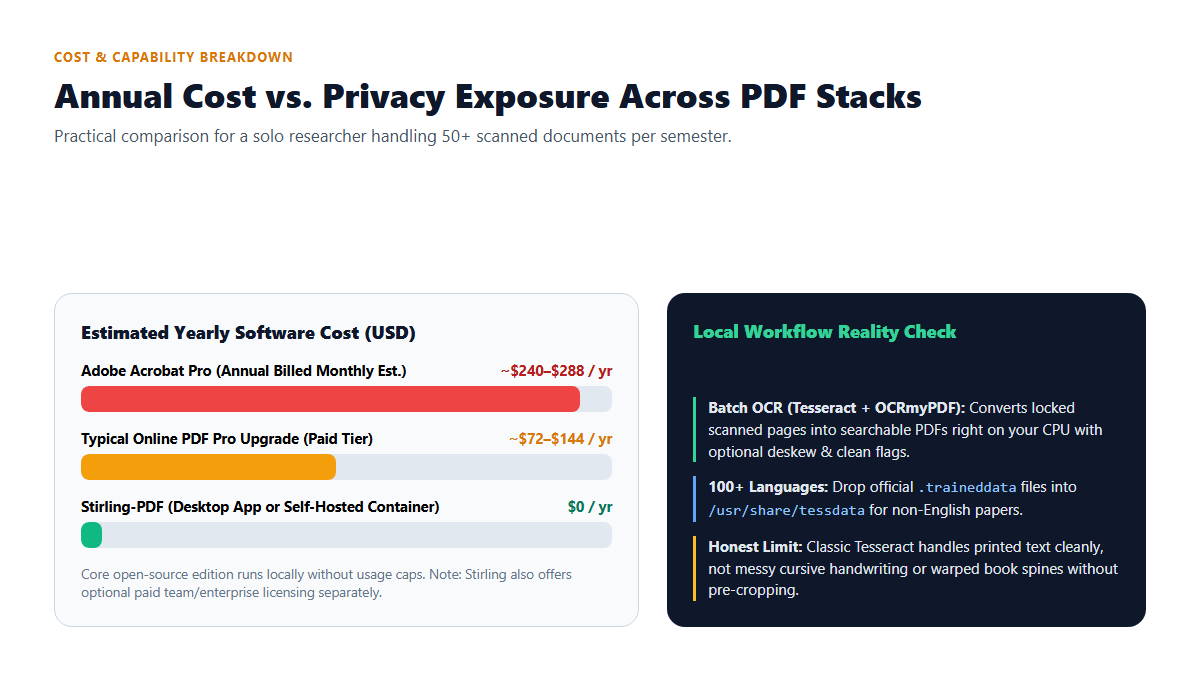
Adobe Acrobat Pro removes upload privacy worries once configured locally, yet locks single users into roughly $240 to $288 per year based on annual-billed monthly plans, plus mandatory sign-ins and desktop bloat. Typical online converters appear free for file one, then demand ~$72 to $144 yearly upgrades once batch queues or multi-file merges kick in.
Stirling PDF drops recurring solo software spend to $0 while keeping every document on your own storage drive. Running local OCR finishes routine 20-to-30 page text recognition tasks cleanly even with Wi-Fi switched completely off, letting you hand clean text PDFs straight into workflows like our free PDF-to-audiobook setup.
Where Your Files Actually Travel
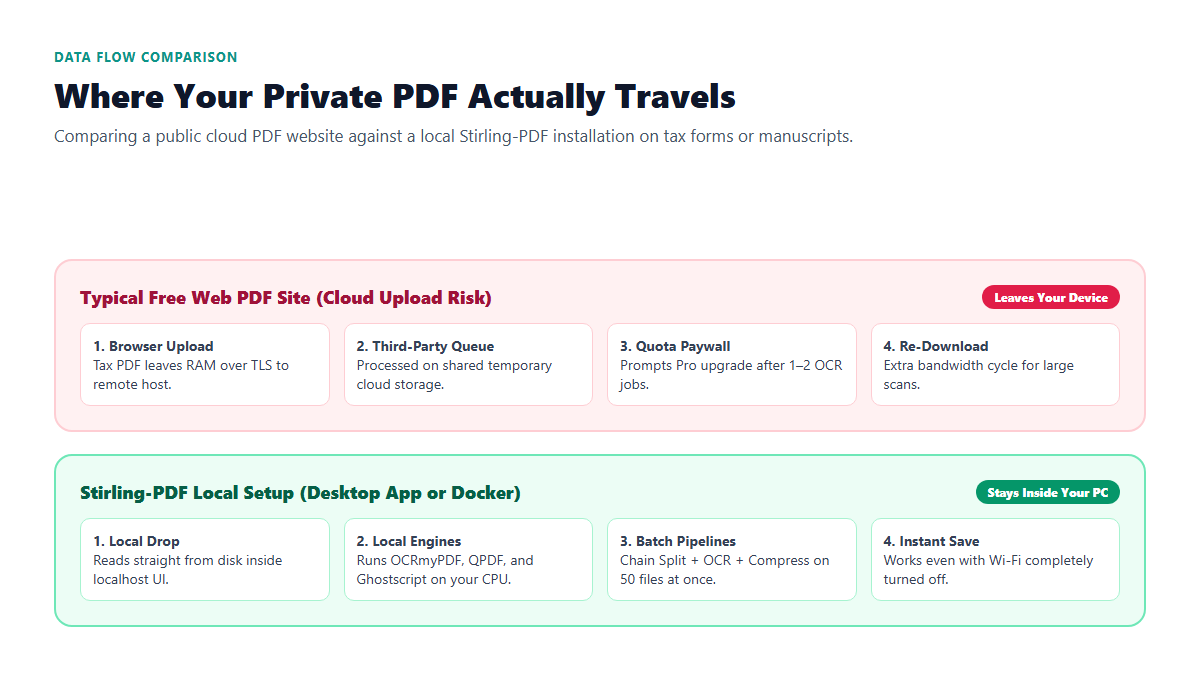
Before putting medical records, signed NDAs, or lease agreements into any browser tool, trace the network path. Web converters force Chrome to ship raw files over HTTPS into external storage queues, run unknown server scripts, and send back a temporary download URL.
A local Stirling PDF installation deletes every remote hop outside your laptop. Your browser displays a local interface served off your own operating system, processes bytes in local memory with QPDF and OCRmyPDF, and writes results straight back into your Downloads folder.
| Evaluation Factor | Adobe Acrobat Pro | Free Web PDF Sites | Stirling PDF (Local) |
|---|---|---|---|
| Recurring Solo Cost | ~$240–$288 / yr | Strict caps; ~$72–$144 / yr Pro | $0 forever (open-source core) |
| Cloud Exposure | Account sync & cloud features active | Uploaded to external servers | Zero bytes uploaded (runs offline) |
| Batch File Caps | Unlimited local files | 1–2 file hourly or daily paywalls | Unlimited files and saved pipelines |
| OCR Language Support | Built-in proprietary | Restricted menu on free tier | 100+ Tesseract .traineddata packs |
| Install Friction | Heavy installer + Adobe account | Instant browser upload | One-click Desktop app or Docker file |
Choosing Your Stirling PDF Setup: One-Click Desktop App or Local Container
Most blog tutorials still treat Stirling PDF like a Linux sysadmin project, overlooking an official upgrade that changes everything for everyday users: you do not need terminal commands at all to run it locally.
Path A: Native Desktop App (Zero Terminal Required)
Visit the official Stirling PDF documentation (docs.stirlingpdf.com or GitHub Stirling-Tools/Stirling-PDF) and download the native desktop installer for Windows, macOS, or Linux. Double-click it like any standard utility, open your files, and finish OCR or page merging without ever typing YAML or opening a terminal window.
Path B: Docker Compose (Best for Power Users & Always-On Tabs)
If you share a machine across family workstations or want custom folder mounts for automated PDF drops, running a single container gives you direct control over RAM, languages, and updates. Note that Stirling PDF migrated its official registry from legacy frooodle/s-pdf to docker.stirlingpdf.com/stirlingtools/stirling-pdf (also mirrored under stirlingtools/stirling-pdf on GHCR and Docker Hub):
services:
  stirling-pdf:
    image: docker.stirlingpdf.com/stirlingtools/stirling-pdf:latest
    container_name: stirling-pdf
    ports:
      - "8080:8080"
    volumes:
      - ./trainingData:/usr/share/tessdata
      - ./extraConfigs:/configs
      - ./customFiles:/customFiles
      - ./logs:/logs
      - ./pipeline:/pipeline
    environment:
      - DOCKER_ENABLE_SECURITY=false
      - LANGS=en_GB
    restart: unless-stopped
Save that config inside a clean folder as compose.yml, launch it with docker compose up -d, and visit http://localhost:8080 in Chrome or Firefox. Keep port 8080 bound locally unless you explicitly configure user authentication.
Stirling PDF Build Editions and Hardware Footprint Explained
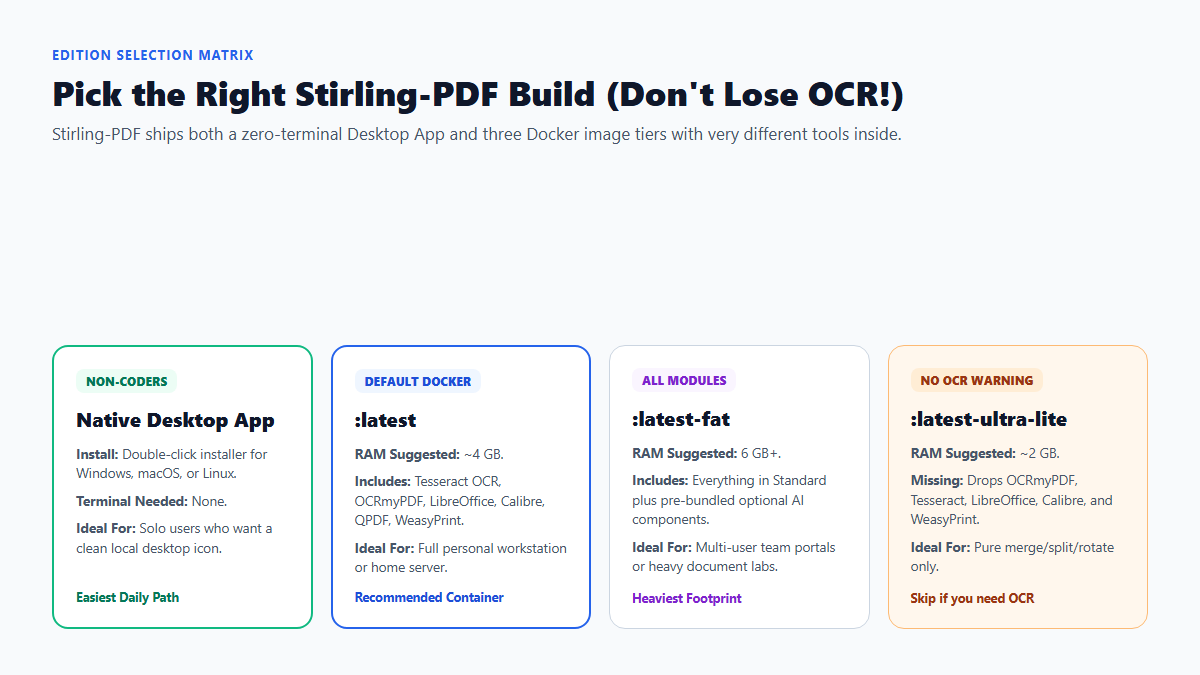
Stirling PDF distributes three container image variants. Grabbing the smallest tag to save disk space breaks OCR and Word conversion immediately because ultra-lite removes heavy conversion binaries.
| Build Edition | Suggested RAM | Included Core Tools | What It Leaves Out |
|---|---|---|---|
| Native Desktop App | ~2–4 GB standard laptop headroom | Local app window + core offline PDF toolkit | Multi-user web server controls |
Docker :latest |
~4 GB recommended | Tesseract OCR, OCRmyPDF, LibreOffice, Calibre, WeasyPrint, QPDF, ImageMagick | Optional pre-bundled AI modules |
Docker :latest-fat |
6 GB+ recommended | Full standard edition plus bundled optional modules | Nothing removed; heaviest image pull |
Docker :latest-ultra-lite |
~2 GB recommended | QPDF & Ghostscript core utilities (merge, split, rotate, compress) | Strips OCRmyPDF, Tesseract, LibreOffice, Calibre, WeasyPrint |
Running Stirling PDF Offline OCR, Custom Languages, and Batch Pipelines
Once Stirling PDF opens, three quick adjustments save serious hours beyond single-file merges:
Make flat image scans searchable cleanly: Open OCR PDF. Leave extra sidecar exports unchecked unless you want a parallel .txt dump, check Deskew on crooked phone photos, and keep Clean enabled only if dusty background specks interfere with character edges.
Add non-English OCR packs cleanly: Default containers keep only English dictionaries to trim download size. Grab extra .traineddata packs from the official Tesseract tessdata repository (such as fra.traineddata, deu.traineddata, or hin.traineddata), place them inside your mapped ./trainingData directory pointing to /usr/share/tessdata, and restart once.
Automate multi-step jobs with Pipelines: Rather than uploading the same syllabus packet four times to split chapters, run OCR, compress images, and stamp page numbers, build a reusable workflow inside the Pipeline tab. It chains those tasks into a single JSON recipe for batch folders. Once scans carry crisp selectable text, cleaning notes with workflows like converting notes into clean Markdown gets noticeably more reliable too.
Where Stirling PDF Hits Limits: Skewed Scans, Handwriting, and Security
Stirling PDF breezes through clean office printouts and flat textbook scans, yet open-source tooling hits clear boundaries you should know upfront.
Handwriting and cramped chalkboard photos fail hard
Classic Tesseract expects printed typography aligned neatly along level horizontal rows. Feed it messy cursive doctor notes, light pencil margin scribbles, or warped camera snaps curved near a book binding, and OCRmyPDF turns out garbled characters. Crop pages square and pass handwritten sheets through dedicated vision OCR models instead.
Exposing localhost without login protection
Because the quick personal Compose snippet sets DOCKER_ENABLE_SECURITY=false so you can skip passwords on your own desk, never expose port 8080 directly to the public internet without turning authentication on and putting TLS encryption in front. Leaving security off publicly exposes your files and logs to anyone scanning ports.
Using :latest-ultra-lite and blaming the UI
Every week newcomers open help threads wondering why OCR PDF or Word conversion throws missing-dependency errors. Almost always, their container pulled the ultra-lite tag, which explicitly omits OCRmyPDF and LibreOffice. Switch back to :latest or install the Native Desktop App whenever OCR is on your list.
Wrap-Up and Next Steps
Between the zero-terminal desktop installer for quick everyday fixes and the standard Docker build for batch OCR and multi-language packs, Stirling PDF handles almost every routine PDF chore privately without paying Adobe every month or leaking files to third-party servers. If you are preparing research papers or 80-page reports for AI interrogation, you can also check our guide on analyzing dense research papers with Humata AI.
Want zero-fluff guides on open tools you actually own? Get one practical AI workflow every Tuesday. Subscribe free from the homepage →