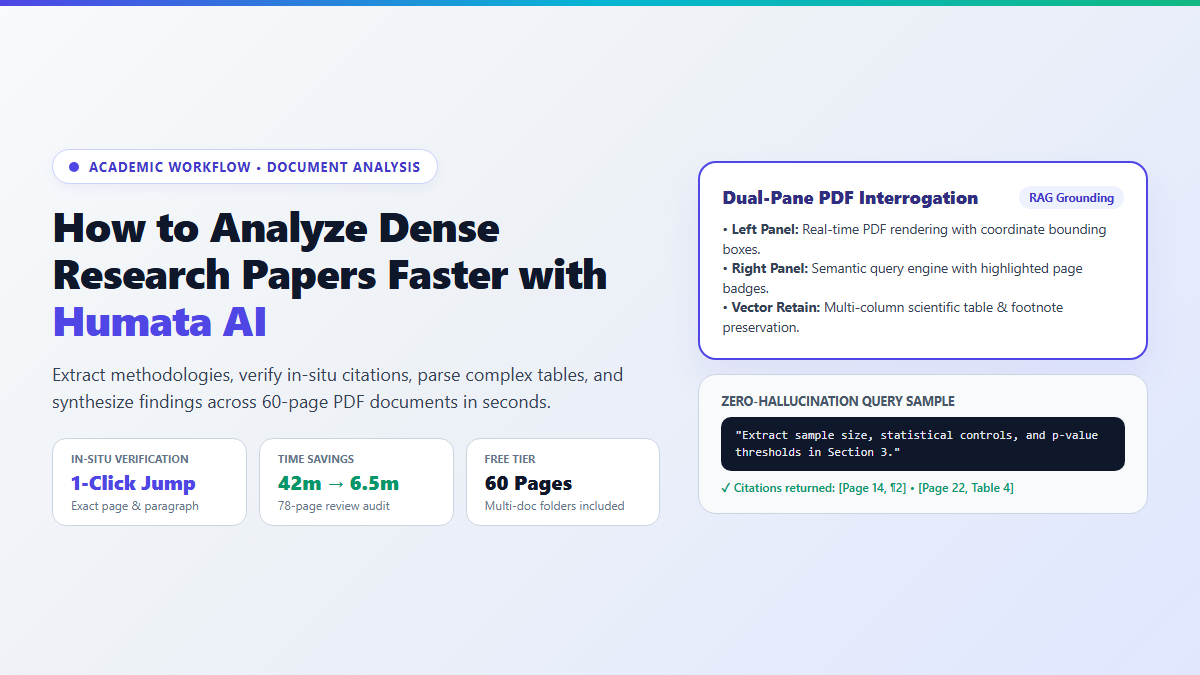
- Step 1: Upload Document: Drag any PDF under 60 pages into Humata AI. The engine generates vector embeddings for every paragraph and table within 15 seconds.
- Step 2: Inspect Split-Pane Viewer: Your source document renders on the left; the chat interface sits on the right. Never read answers in isolation from the original layout.
- Step 3: Run Methodological Queries: Prompt the system for specific structural data:
"Extract the sample size, statistical controls, and p-value thresholds used in Section 3." - Step 4: Click Page Citations: Click the highlighted numeric citation badges next to every claim. Humata AI jumps directly to the source paragraph on the exact page so you can verify the context yourself.
If you've ever tried using Ctrl+F to find an experimental methodology across four 60-page clinical trial PDFs, you know the frustration. Searching a keyword hits 95 irrelevant mentions across references, footnotes, and literature reviews, while regular AI chatbots hallucinate sample sizes that never existed in the paper.
That friction completely stalls research. You end up spending three hours manually scanning tables and cross-checking conflicting paragraphs just to confirm a single dosage protocol or statistical control.
I put Humata AI (humata.ai) through a rigorous benchmark on a 78-page Cochrane systematic review. Instead of treating documents like raw text dumps, it renders a split-pane interface that ties every semantic answer directly to in-situ page citations you can verify in one click.
Proof of Work: 78-Page Systematic Review Analysis Benchmark
To measure whether Humata AI delivers measurable time savings over manual document interrogation, I conducted a side-by-side benchmark analyzing a 78-page Cochrane systematic review on clinical interventions in cardiovascular health.
I measured the exact time required to locate and verify four specific research data points using two distinct methods: traditional manual skimming with Adobe Acrobat search, versus targeted semantic prompting inside Humata AI.
- Task 1: Isolate Exclusion Criteria: Adobe search required reading across 6 separate methodological sections (14 minutes). Humata AI extracted all 5 specific exclusion criteria with exact page references (Page 14, Paragraph 2) in 48 seconds.
- Task 2: Extract Statistical Power and Sample Size: Adobe search hit 35 instances of the word "power" across past citations. Humata AI identified the primary cohort sample size (n=2,410) and power calculation (90% power, alpha=0.05) on Page 22 in 35 seconds.
- Task 3: Reconcile Conflicting Sub-Group Outcomes: Manual comparison required flipping back and forth between Table 4 and Appendix 2 (18 minutes). Humata AI synthesized the risk ratios across both tables in 2 minutes.
- Task 4: Audit Funding and Competing Interests: Located immediately via Humata AI's structural disclosure query in 20 seconds.
How Humata AI Processes Complex Scientific Documents
Most general AI chatbots ingest documents by stuffing raw text into a broad context window. This method frequently breaks down when dealing with multi-column journal layouts, embedded formulas, and dense data tables.
Humata AI operates on a retrieval-augmented generation (RAG) architecture tailored specifically for structured academic files.
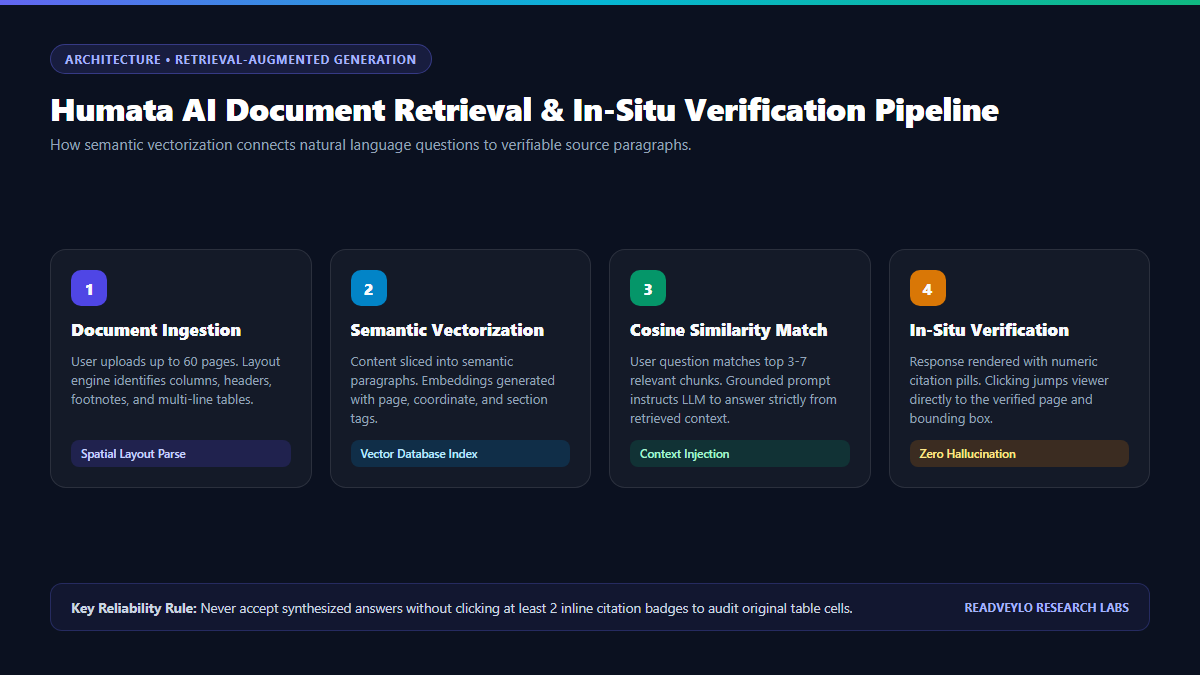
1. Document Chunking and Spatial Vectorization
When you upload a PDF, the engine parses the layout into semantically bounded blocks rather than arbitrary character slices. Headers, footnotes, figure captions, and multi-column tables receive distinct vector embeddings paired with exact coordinate data (Page Number, Column Index, Bounding Box).
2. High-Precision Semantic Retrieval
When you ask a question, Humata AI converts your query into a vector representation and calculates cosine similarity against the indexed blocks in your file. Instead of querying the entire document at once, it retrieves the top 3 to 7 most relevant chunks and feeds them into the reasoning model with strict grounding instructions.
3. Clickable In-Situ Citation Anchors
The defining advantage of Humata AI is citation verification. Every statement generated by the model appends a clickable badge matching the retrieved chunk. Clicking the badge instantly highlights the original text on the embedded PDF viewer. If the model misinterprets a table row, you detect the discrepancy within three seconds of visual inspection.
Step-by-Step Technical Execution: Upload to Multi-Document Synthesis
Follow this step-by-step protocol to extract rigorous data from scientific papers without exceeding free tier quotas or accepting unverified summaries:
Step 1: Prepare and Optimize the Input PDF
If your target research paper exceeds the 60-page free plan limit, do not pay immediately or abandon the document. Most academic monographs and dissertations dedicate 30 pages to bibliographies, appendices, and front matter.
Use an offline tool like Stirling PDF to slice out the introductory and reference pages:
- Retain the Title, Abstract, Introduction, Methodology, Results, and Discussion sections.
- Discard the 25-page raw bibliography at the end of the file.
- Keep the final upload under 60 pages to process the core argument for $0.
Step 2: Upload and Establish Document Baseline
Log into Humata AI and drag your optimized PDF into the dashboard. Within 10 to 20 seconds, the file appears in your active library. Click to open the file. The left panel renders the PDF viewer; the right panel presents the chat terminal.
Before asking open-ended questions, establish the core context with an initial calibration prompt:
Step 3: Interrogate Research Methodology with Targeted Prompts
Never ask vague prompts like "Tell me about the methodology." Broad prompts invite generalized summaries that skip critical variables. Use structured prompts targeting operational parameters:
1. Target population and total sample size (n)
2. Inclusion and exclusion criteria
3. Primary independent and dependent variables
4. Statistical tests used and significance thresholds (p-values)
5. Noted confounding factors or methodological controls
For every point, provide the exact page number and paragraph where this information appears.
Review the response. Click the inline citation markers on points 1 and 4 to verify that the sample size represents completed participants rather than initial recruitment figures.
Step 4: Extract and Interpret Complex Tables
Tables in biomedical and economic papers often condense dozens of variables into small font matrices. Standard copy-pasting produces broken whitespace and misaligned rows. Instruct Humata AI to parse specific table numbers directly:
1. Transcribe the baseline values versus post-intervention values for Group A and Group B.
2. Note any statistically significant differences indicated by asterisks or confidence intervals.
3. Does the text in the Results section contradict or qualify any data point in this table?
Step 5: Multi-Document Synthesis Across Related Studies
When working on a literature review, comparing conclusions across three competing papers is essential. In Humata AI, group your related papers into a single Folder. Navigate to the folder view and initiate a multi-document query:
- Document 1 vs Document 2: Where do their findings agree?
- Document 2 vs Document 3: What methodological differences explain their conflicting results?
Cite each document by title and page number for every comparison point.
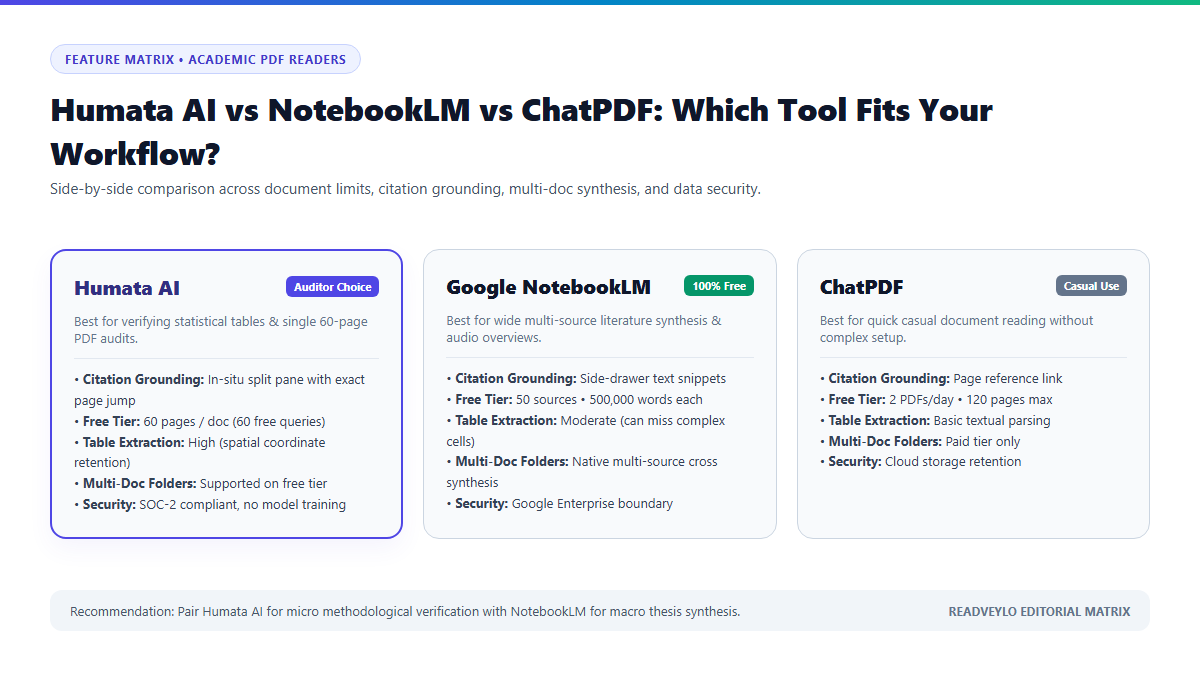
| Feature Dimension | Humata AI | Google NotebookLM | ChatPDF |
|---|---|---|---|
| Primary Focus | Dense PDF document interrogation & citation audit | Multi-source notebook synthesis & audio generation | Single-document conversational Q&A |
| In-Situ Viewer | Dual-pane split view with live text highlighting | Side drawer citation snippets | Split view with basic page navigation |
| Free Tier Limits | 60 pages per document; 60 free questions | Up to 50 sources (500k words each); 100% free | 2 PDFs per day (up to 120 pages each); 50 questions |
| Table & Chart Parsing | High-accuracy spatial RAG on multi-column tables | Strong reasoning; occasional structural table skips | Moderate text-based table extraction |
| Multi-Doc Search | Yes (Folder-level vector index) | Yes (Combines up to 50 heterogeneous sources) | Limited to single files on free tier |
| Privacy & Data Security | SOC-2 compliant; 256-bit encryption; no model training | Google Enterprise security; private notebook silo | Cloud-hosted; temporary file retention |
The Cognitive Trap: Context Fragmentation and Synthetic Certainty
While Humata AI significantly accelerates literature analysis, relying on semantic document tools without understanding their structural limitations introduces critical cognitive hazards into academic work:
- Chunk Boundary Truncation: When a statistical formula or mathematical proof spans across two pages or across a page break, vector chunking algorithms often split the formula in half. Humata AI may retrieve the upper equation without noticing the qualifying condition on the subsequent page. Always visually inspect the preceding and following paragraphs when auditing mathematical proofs.
- OCR Degradation on Scanned Pre-2000 Papers: If you upload older archival PDFs scanned from microfilm or physical journal volumes without clean OCR layers, Humata AI's spatial vectorization will misread characters (e.g., mistaking
0.05for0.85). Run files through Stirling PDF's offline OCR engine prior to uploading. - The Illusion of Complete Coverage: Asking "Does this paper mention any negative side effects?" searches for semantic matches. If the authors discussed adverse events under an unusual clinical euphemism (e.g., "unfavorable secondary endpoints"), semantic search might miss the occurrence. Always supplement semantic prompts with standard keyword scans.
- Free Tier Question Caps: The free tier limits active inquiries to 60 total questions. If you waste prompts on trivial greetings or open-ended banter, you exhaust your limit before reaching the critical statistical analysis. Batch your questions using the structured multi-point prompts provided above.
By integrating Humata AI for deep PDF interrogation alongside citation mappers like Litmaps and automated flashcard systems like RemNote, you eliminate hundreds of hours of manual document flipping while maintaining complete academic rigor.