If you run recurring tasks across your apps, you probably know the Zapier pricing cliff. You start on a free tier with 100 tasks a month. Two weeks later, a single email parsing routine or RSS monitor burns through your quota, and Zapier halts your automations until you hand over $20 to $73 every month. If you want AI steps in your workflow, Zapier charges extra credits or requires routing every customer email, private document, and webhook payload through external OpenAI servers.
You do not need to pay monthly subscription taxes or expose private business data to third-party automation vendors. By pairing n8n with local Ollama, you get a self-hosted automation engine that matches Zapier feature for feature. You can chain webhooks, query databases, process emails, run local language models like Qwen 2.5 or Llama 3.2, and push structured alerts to Telegram, Discord, or Obsidian. Because the entire pipeline runs locally inside Docker, you pay $0 in subscription fees, face zero execution limits, and transmit zero telemetry packets to the cloud.
The 4-stage private automation blueprint
You can deploy a complete n8n and Ollama automation stack on your computer in less than ten minutes.
- Step 1 (Start Ollama with automation models): Run Ollama on your host machine. Pull
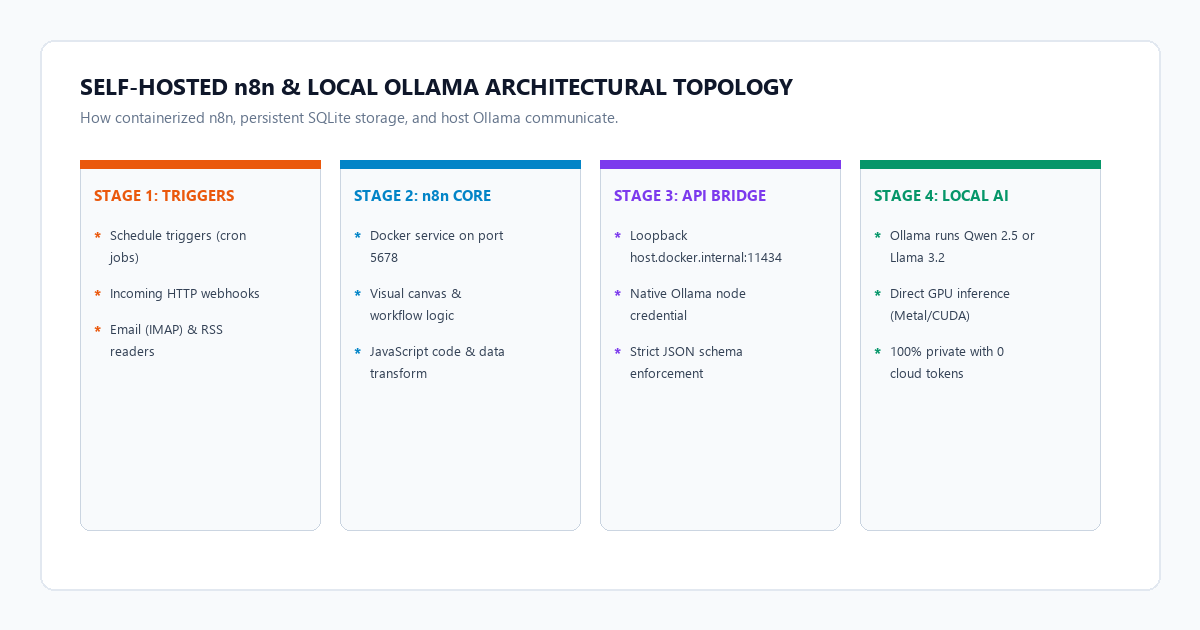
qwen2.5:7bfor structured reasoning and JSON extraction, orllama3.2:3bfor fast text summarization. Verify that Ollama listens on port 11434. - Step 2 (Launch n8n via Docker Compose): Create a clean project folder with a lightweight Docker Compose file. Map port 5678, configure persistent volume storage for your workflows, and add the host gateway network bridge so n8n can communicate with your local Ollama daemon.
- Step 3 (Connect the native Ollama node): Open
http://localhost:5678in your browser. Complete the initial local setup, add an "Ollama Model" credential node, and set the base URL tohttp://host.docker.internal:11434. n8n immediately discovers all models on your drive. - Step 4 (Build and trigger your first autonomous loop): Assemble a multi-step workflow. Ingest an RSS feed or webhook payload, route the text through an Ollama AI node with strict JSON schema instructions, and output the parsed summary into a Discord channel, Telegram chat, or local markdown file.
Benchmark audit: Zapier Professional ($73.50/mo) vs. Make.com vs. Self-Hosted n8n + Ollama ($0)
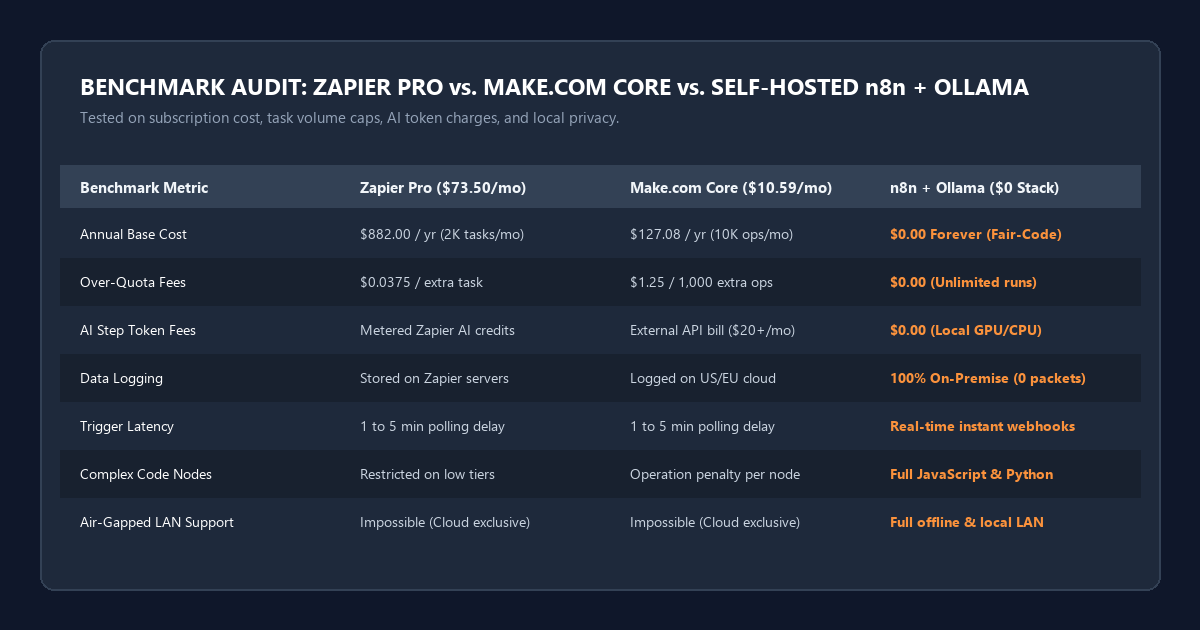
To measure how self-hosted automation compares against proprietary SaaS alternatives, we benchmarked Zapier Professional, Make.com Core, and a self-hosted n8n + Ollama stack across task quotas, annual costs, AI token charges, and data security.
| Evaluation Metric | Zapier Professional ($73.50/mo) | Make.com Core ($10.59/mo) | Self-Hosted n8n + Ollama ($0 Stack) |
|---|---|---|---|
| Annual Base Subscription | $882.00 / year (2,000 tasks/mo) | $127.08 / year (10,000 ops/mo) | $0.00 Forever (Fair-code open core) |
| Over-Quota Task Fees | $0.0375 per extra task | $1.25 per 1,000 extra operations | $0.00 (Unlimited hardware executions) |
| AI Step Token Fees | Metered Zapier AI credits or external API bill | External OpenAI / Anthropic API bill | $0.00 (Local GPU/CPU model inference) |
| Data Privacy & Logging | Webhook payloads stored on Zapier servers | Execution history logged on EU/US cloud | 100% On-premise (Zero cloud transit) |
| Execution Speed & Throttling | 1 to 5 minute polling intervals on low tiers | 1 to 5 minute polling intervals | Real-time webhook triggers (Instant) |
| Complex Logic & Branching | Limited paths unless on expensive tiers | Visual graph with operation count penalties | Full JavaScript/Python functions and loops |
| Self-Hosted Air-Gapped Use | Impossible (Cloud exclusive) | Impossible (Cloud exclusive) | Fully functional on local offline networks |
| Active Memory Overhead | 0 MB (Remote SaaS execution) | 0 MB (Remote SaaS execution) | ~450 MB RAM for n8n container |
The numbers highlight why commercial automation bills climb so quickly. A simple workflow that monitors three news feeds, filters new articles, summarizes them with AI, and stores the output executes four distinct steps per article. At fifty articles a day, that single pipeline generates 6,000 task executions every month. On Zapier, you will blow past the $73.50 tier into enterprise pricing. On self-hosted n8n, that same pipeline runs continuously in the background on an existing laptop or desktop without spending a single dollar.
Hardware requirements matrix and local model selection for automation
Running n8n alongside Ollama requires minimal compute for orchestration, but the language model you choose determines memory consumption and response latency.
| Hardware Profile | Model Recommendation | Quantization | RAM / VRAM Footprint | Best Automation Use Cases |
|---|---|---|---|---|
| Entry Level (8 GB RAM, Integrated GPU) | Llama 3.2 3B or Qwen 2.5 3B | Q4_K_M | 2.8 GB to 3.5 GB | Email classification, sentiment tagging, short alert drafting |
| Standard Setup (16 GB RAM or 8 GB VRAM) | Qwen 2.5 7B or Mistral 7B | Q4_K_M | 5.5 GB to 7.0 GB | Strict JSON extraction, long document synthesis, multi-node agents |
| Power Workstation (32 GB RAM or 12 GB+ VRAM) | Qwen 2.5 14B or DeepSeek-R1 8B | Q4_K_M / Q5_K_M | 9.5 GB to 12.0 GB | Complex schema validation, multi-source research, code transformation |
| Dedicated Server (64 GB+ RAM or 24 GB VRAM) | Qwen 2.5 32B or Llama 3.3 70B | Q4_K_M | 20.0 GB to 40.0 GB | Enterprise document routing, deep analysis, autonomous agent chains |
For most users running an M-series Mac or an Nvidia RTX laptop, qwen2.5:7b is the top performer. It handles system instructions reliably, produces valid JSON without hallucinating extra prose, and processes an average article in three to five seconds.
Step-by-step setup: Deploying n8n and bridging host Ollama via Docker Compose
The cleanest way to run n8n on Windows, macOS, or Linux is through Docker Compose. This ensures your workflow data, webhook configurations, and credentials persist across system reboots.
Step 1: Install Ollama and pull your automation models
If you do not have Ollama installed, download it from the official site. Once installed, pull your target model from your terminal or PowerShell console:
# Pull Qwen 2.5 7B for high-precision JSON formatting
ollama pull qwen2.5:7b

# Pull Llama 3.2 3B for ultra-fast text routing
ollama pull llama3.2:3b
Verify that Ollama is listening locally by opening http://localhost:11434 in your browser. You should receive the standard confirmation: Ollama is running.
Step 2: Configure the Docker Compose file
Create a new directory named n8n-local and add a docker-compose.yml file. Notice the extra_hosts declaration. This setting maps host.docker.internal so the containerized n8n service can reach your host-bound Ollama instance:
version: '3.8'

services:
  n8n:
    image: docker.n8n.io/n8nio/n8n:latest
    container_name: n8n-automation
    restart: unless-stopped
    ports:
      - "5678:5678"
    environment:
      - N8N_HOST=localhost
      - N8N_PORT=5678
      - N8N_PROTOCOL=http
      - NODE_ENV=production
      - WEBHOOK_URL=http://localhost:5678/
      - GENERIC_TIMEZONE=America/New_York
      - N8N_DEFAULT_BINARY_DATA_MODE=filesystem
    volumes:
      - ./n8n_data:/home/node/.n8n
    extra_hosts:
      - "host.docker.internal:host-gateway"
Start the container from your terminal:
docker compose up -d
Docker downloads the n8n image, initializes the SQLite database in ./n8n_data, and starts the server.
Step 3: Configure Ollama credentials in n8n
Open your web browser and navigate to http://localhost:5678.
- Create your local admin user account on first launch.
- Click Credentials in the left sidebar, then click New Credential.
- Search for Ollama and select Ollama API.
- In the Base URL field, enter:
http://host.docker.internal:11434. - Click Save. n8n tests the connection to your host Ollama instance and displays a green confirmation status.
On native Linux systems, host.docker.internal may require assigning your host docker bridge IP (typically http://172.17.0.1:11434) or setting network_mode: "host" directly in your docker-compose.yml file.
Building your first autonomous AI workflow: Automated RSS news summarizer and Telegram dispatch
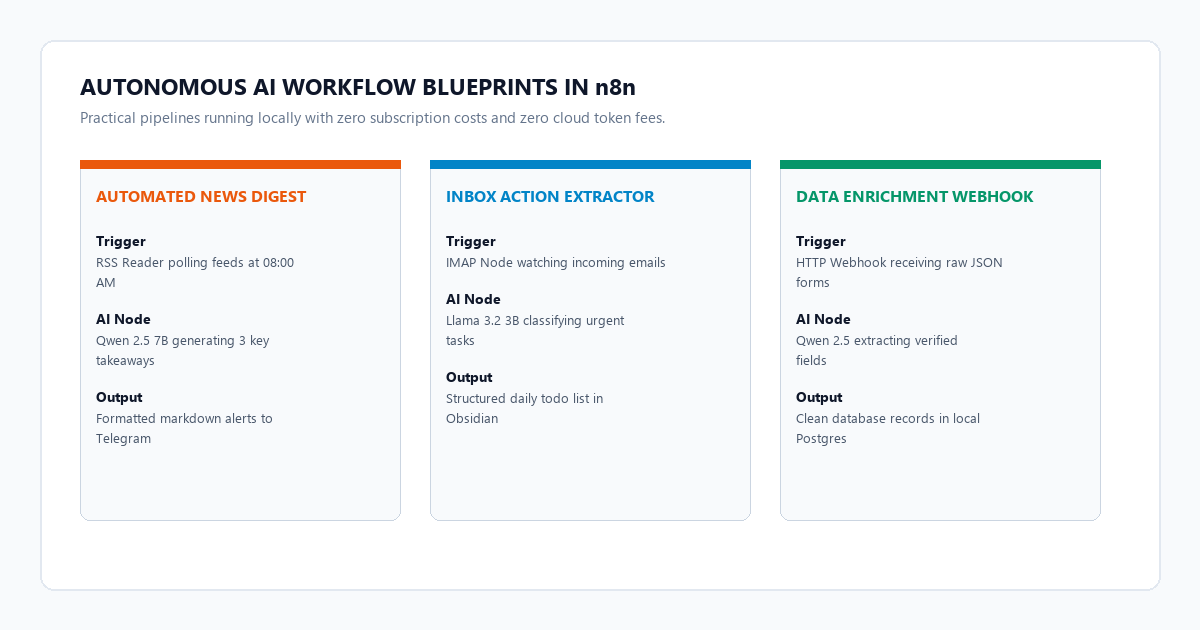
Let us construct a real-world automation that replaces a paid Zapier pipeline. This workflow monitors an RSS feed every morning, identifies new publications, summarizes each post into three actionable bullets using local Ollama, and sends the output to a Telegram or Discord channel.
Node 1: Schedule Trigger
Add a Schedule Trigger node set to run daily at 08:00 AM. In development, you can test it manually using the "Test step" button.
Node 2: RSS Read Node
Add an RSS Read node. Point the URL to your favorite technical publication feed (for example, https://news.ycombinator.com/rss or any blog feed). Set the node to return the top 5 newest articles.
Node 3: AI Chain / Basic LLM Node
Add an Ollama Model node and connect it to a Chain or Information Extractor node.
- Model:
qwen2.5:7b - System Prompt:
You are an executive research assistant. Read the provided article title and content snippet.
Output an objective summary adhering strictly to this format:
- Key Insight: (1 sentence)
- Core Takeaway: (1 sentence)
- Practical Impact: (1 sentence)
Do not include conversational filler, greetings, or sign-offs.
Node 4: Telegram or Discord Dispatch
Add a Telegram (or Discord) node. Format the message content using markdown:
📰 *{{ $json.title }}*
🔗 Link: {{ $json.link }}

🤖 *Local AI Summary:*
{{ $json.response }}
Activate the workflow. Every morning, n8n polls the feed, passes new entries to Ollama on your GPU, formats the bullet points, and delivers the report to your chat app. Total monthly bill: $0.00.
Handling structured JSON schema outputs and prompt engineering for local models
One frequent friction point when replacing cloud APIs with local models is JSON parsing reliability. When you ask GPT-4o for JSON, it rarely wraps the response in unexpected markdown commentary. Smaller local models (such as 3B or 7B parameter models) occasionally output conversational preambles like "Here is your JSON object:" followed by markdown code blocks (```json), which crashes standard n8n JSON parse nodes.
To eliminate parsing errors, apply these three rules to your n8n prompt and node configuration:
Rule 1: Enforce grammar-level JSON constraints
In your Ollama node settings in n8n, expand Optional Parameters and select Format. Set the format value to json. This instructs Ollama to enforce strict grammar sampling, forbidding the model from generating non-JSON tokens.
Rule 2: Anchor the system prompt with exact key definitions
Use explicit keys and datatypes in your system prompt:
You are a structured data pipeline node. You must output a single valid JSON object with no markdown wrappers and no explanation.
Required JSON Schema:
{
  "category": "Technology" | "Finance" | "Productivity",
  "urgency_score": 1 to 5,
  "actionable_bullets": ["point 1", "point 2"],
  "requires_followup": true | false
}
Rule 3: Use an n8n Code Node as a safety sanitization bridge
Place a simple JavaScript Code node immediately after the Ollama step to clean any accidental markdown fencing before parsing:
for (const item of $input.all()) {
  let rawText = item.json.response || item.json.text || "";

  // Strip markdown code fences if present
  rawText = rawText.replace(/```json/g, "").replace(/```/g, "").trim();

  try {
    item.json.parsed_payload = JSON.parse(rawText);
  } catch (error) {
    item.json.parsed_payload = {
      error: "JSON_PARSE_FAILED",
      raw_output: rawText
    };
  }
}
return $input.all();
This safeguard prevents broken runs and ensures your automated pipelines run unattended for weeks without manual resets.
Failure modes, memory bottlenecks, and webhook retry strategies
Self-hosting automations means you own your infrastructure. While you avoid cloud subscription fees, you must account for hardware edge cases that cloud platforms handle behind the scenes.
Failure Mode 1: Ollama VRAM unloading and model-swap latency
By default, Ollama unloads a model from memory after five minutes of inactivity (keep_alive: 5m). If your n8n workflow triggers once an hour, Ollama has to reload the 5 GB model weights from your SSD into VRAM on every single run. This introduces a 4 to 8 second delay and spikes disk I/O.
The Fix: Set a prolonged keep-alive duration in your Ollama environment. On Windows or Linux, define the environment variable:
OLLAMA_KEEP_ALIVE=24hThis keeps the model cached in memory so automated webhook executions respond instantaneously.
Failure Mode 2: Batch webhook pileups and memory exhaustion
If you set up an n8n webhook that receives dozens of incoming events simultaneously (for example, receiving incoming GitHub events or email notifications), n8n triggers multiple Ollama inference requests at once. Because local GPUs have finite VRAM, queuing five concurrent 7B model inference requests will exhaust memory or crash the Ollama process.
The Fix: In n8n, open workflow settings and enable Execution Order set to sequential, or insert an n8n Split In Batches node with a batch size of 1. This serializes requests, allowing Ollama to process events one by one without choking your hardware.
Failure Mode 3: Silent webhook failures during power sleep
If you run n8n on a laptop, your automations will pause whenever the screen shuts or the computer enters sleep mode. Scheduled 8:00 AM routines will fail to execute if the operating system suspended network interfaces.
The Fix: If running on a laptop or work computer, configure system power settings to prevent sleep while connected to AC power, or run your Docker Compose stack on an inexpensive low-power mini PC (such as an Intel N100 or refurbished Mac Mini) connected to your local network.
If you expose your local n8n instance to the public internet for incoming webhooks (via Cloudflare Tunnels, Tailscale Funnel, or reverse proxies), always enable basic authentication or header API keys in n8n. Never leave an open webhook endpoint exposed without signature verification.
Frequently asked questions
Can self-hosted n8n connect to Google Drive, Slack, and Notion for free?
Yes. n8n includes over 400 pre-built integration nodes for popular services like Google Sheets, Gmail, Slack, Discord, Notion, Telegram, and Airtable. You only need to create free developer API keys in the respective service console (for example, Google Cloud Console for Gmail). Because you use your own OAuth credentials, you do not pay third-party connector fees.
Is n8n completely free for commercial and personal projects?
n8n is distributed under a fair-code license (Sustainable Use License). You can self-host n8n, build internal workflows, automate your business operations, and run unlimited pipelines for $0. The only restriction is that you cannot re-sell n8n as a managed hosted automation service to third parties in competition with n8n Cloud.
How does n8n compare to Make.com?
Make.com features an intuitive visual interface, but it counts every single router, filter, and variable assignment as a billable operation. A medium workflow with five nodes consumes five operations per execution. n8n runs locally on your computer with zero operation caps, supports custom JavaScript and Python script execution inside any node, and integrates directly with local language models.
Can I run local embeddings and RAG directly in n8n?
Yes. n8n includes advanced AI workflow nodes powered by LangChain. You can pair Ollama embeddings (such as nomic-embed-text) with built-in vector stores like Qdrant, Pinecone, or PostgreSQL PGVector directly on your canvas. This lets your workflows retrieve company documentation or personal notes before generating email drafts or reports.