Opening a dense 50-page syllabus or academic chapter always triggers the same cognitive fatigue: page three looks identical to page thirty, and tracking how secondary arguments connect to the core thesis becomes a chore. Reading linearly from top to bottom is simply the least efficient way to master complex systems.
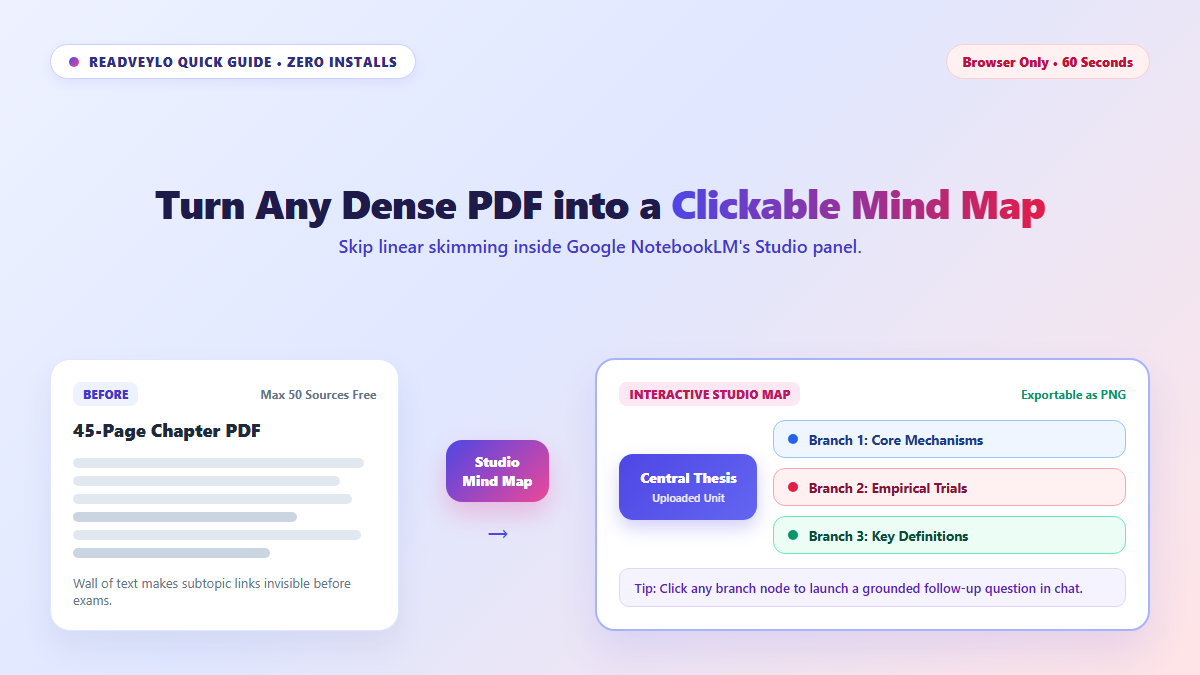
The built-in mind mapping engine in NotebookLM completely solves this visual blind spot. Drop your PDF into a notebook, open the Studio panel, and it constructs an interactive, collapsible node graph that maps the author's logic into clean structural branches in under sixty seconds.
Instead of drowning in another wall of generated text bullets, you get a clean visual hierarchy where you can click any node to probe deeper questions anchored strictly to your source pages.
What a NotebookLM Mind Map Is and Why Visual Learners Use It
Most AI chatbots answer with another wall of bullet points. A NotebookLM Mind Map breaks your source into visual branches inside its Studio panel, letting you pan, zoom, and unfold subtopics step by step. For deeper study systems beyond quick maps, see our full NotebookLM guide for dense PDFs, build active-recall decks with NotebookLM flashcards, or listen to chapters via NotebookLM Audio Overviews.
- Cost: Free with a standard Google account inside Chrome, Safari, or Edge.
- Source Room: Free notebooks hold up to 50 files (PDFs, Google Docs, web links, pasted notes, or YouTube URLs).
- Interactive Nodes: Clicking any branch label sends a scoped question directly into your chat window.
Three Browser Steps to Build a NotebookLM Mind Map
- Create a focused notebook: Open notebooklm.google.com, start a new notebook for one unit or syllabus week, and upload up to 50 source files from your computer or Google Drive.
- Trigger the Mind Map tool: Once sources finish loading on the left, click the Mind Map option shown in the chat chips or inside the Studio panel on the right. Give NotebookLM roughly 20 to 60 seconds to trace the concepts.
- Explore branches and click nodes: Click the
+and-handles on each node to expand subtopics. When a branch looks confusing, click its label directly to trigger a grounded chat breakdown without typing a prompt from scratch. Need fast skimming tips next? Try our paper-skimming guide or slide-to-study-guide steps.
Where NotebookLM Mind Maps Fall Short
- PNG downloads are flat pictures: Saving a map exports a static PNG file for slides or notes, which strips away clickable node-to-chat follow-ups.
- Mixed notebooks create messy trees: Dropping ten unrelated subjects into one notebook flattens important details so everything fits. Keep one class module per notebook.
- No manual drag editing: You cannot rename bubbles or drag branches into custom spots inside NotebookLM yet. If you have structured markdown notes and want an interactive, collapsible tree with vector SVG export, try our 30-second guide on turning markdown notes into mind maps with Markmap.